
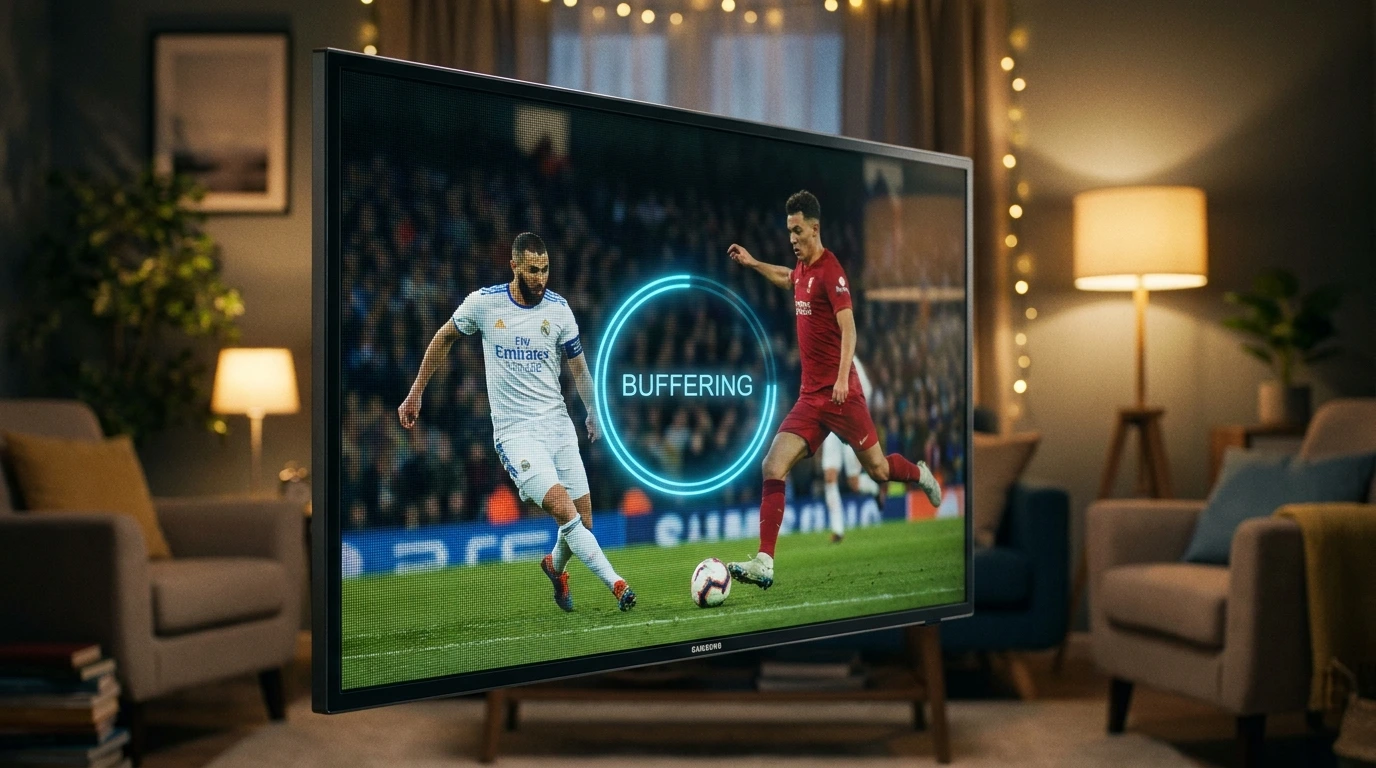
An effective IPTV buffering fix starts by identifying whether the problem comes from your internet connection, streaming device, player settings, or provider server. The good news is that most freezing, lag, and stuttering problems can be diagnosed with a few practical checks.
In this guide, you will learn 11 practical methods for an IPTV buffering fix, including switching to Ethernet or 5 GHz Wi-Fi, adjusting hardware decoding and buffer size, clearing app cache, testing DNS settings, and changing stream formats.
If you recently learned how to set up IPTV correctly on Firestick, or you are using Android TV, Apple TV, or a Smart TV, start with the quick checklist below and then work through the fixes until playback becomes stable.
Some services also advertise anti freeze IPTV technology. We explain what that term can mean in practice and how local device or network issues can still cause buffering. If you are comparing providers, you can also review our guide to choose a reliable IPTV service.
Quick IPTV Buffering Fix Checklist
- Restart your router and streaming device.
- Test Ethernet or switch from 2.4 GHz to 5 GHz Wi-Fi.
- Check your internet speed and connection stability.
- Close background apps and clear the IPTV app cache.
- Try hardware decoding and adjust the player buffer size.
- Test HLS instead of MPEG-TS if a channel keeps freezing.
- Try another channel, stream quality, or server endpoint to isolate the cause.

Complete Troubleshooting Directory
- 1. Why Does IPTV Keep Buffering?
- 2. What Anti Freeze IPTV Technology Actually Means
- 3. Fix 1: Use Ethernet or 5 GHz Wi-Fi
- 4. Fix 2: Check Built-In Player Settings and Hardware Decoder
- 5. Fix 3: Increase or Adjust the IPTV Buffer Size
- 6. Fix 4: Clear App Cache and Free Device Storage
- 7. Fix 5: Test a Different DNS Resolver
- 8. Fix 6: Check for ISP Traffic Management
- 9. Fix 7: Update Your IPTV Player
- 10. Fix 8: Restart Your Router and Streaming Device
- 11. Fix 9: Close Background Apps
- 12. Fix 10: Try HLS vs. MPEG-TS
- 13. Fix 11: Lower Stream Quality or Test Another Server
- 14. IPTV Buffering Troubleshooting Table
- 15. IPTV Buffering FAQ
- 16. Final Checklist for More Stable Playback
Why Does IPTV Keep Buffering?
IPTV playback depends on a continuous flow of video data from the server to your player. If your connection becomes unstable, the device struggles to decode the stream, or the provider server slows down, the player can run out of buffered data and pause while it waits for more. The right IPTV buffering fix depends on which part of that chain is causing the interruption.
Generally, streaming interruptions boil down to four critical bottlenecks:
- Local Hardware Limitations: Running out of volatile RAM, filled flash storage, or overheating media streaming sticks.
- Wi-Fi Signal Dropouts: Packet loss, physical interference from thick walls, or congested 2.4 GHz radio bands can make an IPTV buffering fix necessary.
- Network or ISP Congestion: Performance can vary during busy periods, and some connections may also be affected by traffic-management policies.
- Provider Server Congestion: Overloaded Content Delivery Networks (CDNs) handling too many concurrent connections during massive live sports events.
What Anti Freeze IPTV Technology Actually Means
When searching for a modern subscription, you will frequently encounter services advertising proprietary anti freeze IPTV systems. But what does this terminology actually mean in technical terms?
“Anti-freeze” is a marketing term rather than a universal technical standard. In practice, a provider may use infrastructure such as redundant servers, load balancing, efficient video compression, or multiple delivery routes to improve stream availability.
What Can Improve Server-Side Stability?
Redundant servers, load balancing, efficient codecs such as H.265 (HEVC), and distributed delivery infrastructure can help reduce the impact of server overload or routing problems. The exact implementation varies by provider.
Server-side improvements cannot correct a weak Wi-Fi signal, low device storage, overloaded background apps, or an unsuitable player setting on your device. That is why a practical IPTV buffering fix should start by testing both your local setup and the stream source before deciding where the problem comes from.
Fix 1: Use Ethernet or 5 GHz Wi-Fi
The 2.4 GHz Wi-Fi band can become crowded because it is shared by many household devices and nearby networks. Interference or a weak signal can cause packet loss and inconsistent throughput, so testing a stronger connection is often the first IPTV buffering fix worth trying.
Switching your streaming device to a dedicated 5 GHz Wi-Fi network provides higher bandwidth and lower latency. Even better, using a physical Ethernet cable is an IPTV buffering fix worth testing when Wi-Fi is unstable.
As highlighted in Tom’s Guide’s expert tips to stop TV buffering, a wired Ethernet connection can provide a more stable path than Wi-Fi by avoiding wireless interference. If Ethernet is not practical, test 5 GHz Wi-Fi close to the router and compare playback.
Fix 2: Check Built-In Player Settings and Hardware Decoder
Your media player relies on a decoding engine to turn incoming video data into visible frames. If the selected decoder does not work well with your device or stream, you may see stutter, black screens, audio-sync problems, or dropped frames. Changing decoder mode can be an effective IPTV buffering fix when the network itself is stable. Many players offer hardware and software decoding options:
- Hardware (HW): Uses your device’s dedicated GPU chip. Fast, highly efficient, and runs cool on modern hardware.
- Hardware Plus (HW+): An additional hardware-accelerated mode available in some players and on some Android devices.
- Software (SW): Uses the CPU for decoding. It can help with compatibility on some streams, but it may use more system resources.
Open your player’s Settings > Playback > Video Decoder and compare the available modes. If Software decoding stutters, try Hardware (HW). This IPTV buffering fix can help when the issue comes from decoding rather than network speed. If your app and device support HW+, test it as well. If one mode causes a black screen or audio desynchronization, switch back and test another option.
Fix 3: Increase or Adjust the IPTV Buffer Size
Buffer size controls how much stream data your player stores temporarily before playback. A larger buffer can make short connection drops less noticeable, so adjusting it is another useful IPTV buffering fix, although it may increase the delay before a channel starts playing.
Navigate to your IPTV player settings and locate the Buffer Size or Stream Cache setting:
- None / Small (0–1 seconds): Best for fast channel zapping, but highly vulnerable to minor internet hiccups.
- Medium / Normal (2–3 seconds): The ideal balance for stable high-speed broadband connections and a sensible IPTV buffering fix to test first.
- Large / Very Large: Useful when your connection fluctuates, but it may increase startup time or live-stream delay.
Fix 4: Clear App Cache and Free Device Storage
Streaming devices such as Fire TV sticks, Google TV devices, and Android boxes often have limited storage and memory. When free space becomes low or an app cache grows unusually large, clearing temporary files can be a simple IPTV buffering fix that helps the device run more smoothly.
Over weeks of streaming, Electronic Program Guide (EPG) databases and thumbnails hoard hundreds of megabytes. Perform this quick maintenance routine:
- On Amazon Fire TV: Go to Settings > Applications > Manage Installed Applications.
- Select your IPTV player, click Clear Cache (do not click Clear Data unless you want to re-enter your login details).
- Repeat this for other large apps if storage is tight, then restart the streaming device.
Fix 5: Test a Different DNS Resolver
Most home networks use the DNS resolver supplied by the Internet Service Provider. Changing DNS will not increase the raw speed of your internet connection, but it can be an IPTV buffering fix when slow name resolution or a DNS-related routing issue is part of the problem.
If you want to test another resolver, compare playback before and after the change. Common public DNS options include:
- Cloudflare DNS: Primary:
1.1.1.1| Secondary:1.0.0.1 - Google Public DNS: Primary:
8.8.8.8| Secondary:8.8.4.4
Fix 6: Check for ISP Traffic Management
If IPTV works well at some times of day but becomes unstable during busy periods, first test your connection speed and latency at both times. Choosing the right IPTV buffering fix depends on whether the cause is local Wi-Fi congestion, wider network congestion, server load, or an ISP traffic-management policy.
If you already use a reputable VPN, compare playback with the VPN enabled and disabled. In some cases a different route can help, while in others a VPN can reduce speed or add latency. The result depends on your connection, VPN server, and routing.
Use the comparison only as a troubleshooting step: if several unrelated streaming services slow down at the same time, the issue is more likely to be on the local network or internet connection than inside one IPTV app.
Fix 7: Update Your IPTV Player
Player updates can include bug fixes, codec changes, security updates, and improvements to playback stability. Updating the app can be an IPTV buffering fix if buffering started after an app change or appears only in one player.
Always ensure your player (TiviMate, XCIPTV, IPTV Smarters Pro, Televizo) runs on its latest official version. Developers regularly release performance patches specifically designed to optimize buffer management and memory utilization on modern streaming chips.
Fix 8: Restart Your Router and Streaming Device
A restart is simple, but it can clear temporary network or device problems. As a quick IPTV buffering fix, rebooting your modem or router can restore a stalled connection, while restarting the streaming device can clear background processes and temporary memory pressure.
The 60-Second Clean Power Cycle
Turn off the streaming device and restart your router. If you use a separate modem and router, restart the modem first, wait until the connection is back online, then restart the router and streaming device. Give each device enough time to reconnect before testing playback again.
Fix 9: Close Background Apps
Streaming devices can leave apps suspended in the background after you return to the home screen. On devices with limited memory, closing unused apps can be an effective IPTV buffering fix because it frees resources for the video player.
Use your device’s built-in app management controls to force close apps you are not using, then reopen the IPTV player. Avoid installing unnecessary cleanup utilities unless you trust the developer and actually need the extra tool.
Fix 10: Try HLS vs. MPEG-TS
Some IPTV players allow you to choose between different stream formats. If a specific channel repeatedly freezes, changing the format can be a useful IPTV buffering fix and compatibility test:
- MPEG-TS: A common transport-stream format that may offer lower latency in some setups.
- HLS (HTTP Live Streaming): Delivers video in segments over HTTP and can behave differently on unstable or variable connections, making it a useful IPTV buffering fix to test.
If a particular sports channel keeps freezing on MPEG-TS, head to your player’s format settings and switch your default output to HLS.
Fix 11: Lower Stream Quality or Test Another Server
If you have tried the previous steps and playback still freezes, the next IPTV buffering fix is to test whether the problem follows one channel, one server, one resolution, or every stream. This helps separate a provider-side problem from a device or connection problem.
If your service offers another server endpoint, test it. You can also reduce the stream from 4K to 1080p or 720p to lower bandwidth demand. This IPTV buffering fix is especially useful when lower resolutions work consistently while 4K does not.
IPTV Buffering Troubleshooting Table
Use this table to match common playback symptoms with the most suitable IPTV buffering fix to test first:
| Playback Symptom | Primary Root Cause | First Fix to Test |
|---|---|---|
| Constant 5-second stuttering | Undersized cache or weak Wi-Fi | Increase Buffer to Large + connect 5 GHz / Ethernet |
| Freezes only during live sports | Peak-time congestion, routing issue, or server load | Test connection speed, compare another server, then try HLS or a VPN comparison |
| Audio plays but video freezes | Software video decoder mismatch | Switch player decoder to Hardware (HW or HW+) |
| Player crashes after 20 minutes | Device RAM leak or full cache | Clear app cache + force-close background apps |
| Channel loops back 10 seconds | Provider packet drop / TS error | Switch stream format from MPEG-TS to HLS |

IPTV Buffering Fix FAQ
There is no single speed that guarantees buffer-free playback because bitrate, Wi-Fi quality, routing, and server stability also matter. As a practical starting point, make sure your available speed comfortably exceeds the stream bitrate and stays stable while the stream is playing.
No. “Anti-freeze” is not a universal technical standard, and no system can guarantee zero buffering in every situation. Weak Wi-Fi, low device resources, network congestion, routing problems, or server load can still interrupt playback.
Freezing during busy sports periods can come from local Wi-Fi congestion, wider network congestion, provider server load, or traffic-management policies. Compare connection speed, test another channel or server, and compare playback with and without a VPN if you already use one.
TiviMate, IPTV Smarters Pro, and XCIPTV are popular options, but the best choice depends on your device and the controls you need. Look for hardware decoding, buffer controls, and stream-format options when troubleshooting playback.
There is no fixed schedule. Clear the app cache when storage is low, the app becomes unusually slow, or playback problems persist after a restart. Avoid clearing app data unless you are prepared to enter your login and settings again.
Quick Troubleshooting Examples
Test the player’s hardware decoder first. If one decoder mode causes stutter or a black screen, compare another available mode before changing network settings.
Compare your connection speed, test another channel or server, and try a different stream format. This helps separate local congestion from provider-side load.
The 4K stream may require more stable bandwidth or more decoding power. Test Ethernet, close background apps, and compare a lower resolution to identify the bottleneck.
Final Checklist for More Stable Playback
Start With the Simplest Tests
For most IPTV buffering problems, the best IPTV buffering fix is to begin with the connection: restart the network, test Ethernet or 5 GHz Wi-Fi, and compare your available speed. Then check the player by testing hardware decoding, buffer size, cache, and stream format.
If the problem remains, compare another channel, server endpoint, or lower resolution. Testing one variable at a time makes it much easier to identify whether the bottleneck is your network, device, player configuration, or the stream source.
2 thoughts on “IPTV Buffering Fix : 11 Powerful Fixes for Flawless TV”
Comments are closed.