
When you sit down to watch a live football match or an evening movie only to find IPTV Smarters Pro not working, the frustration is immediate. Whether the application throws an “Invalid Details” error, crashes on launch, shows a black screen while audio plays, or gets trapped in an endless buffering loop, pinpointing the exact root cause saves you hours of aimless troubleshooting.
Because IPTV Smarters Pro acts strictly as an empty media player shell, playback failures typically stem from three distinct areas: local device cache corruption, incorrect hardware decoder configurations, or upstream server authentication roadblocks from your service provider. Knowing how to systematically diagnose these issues gets your channels back online without wiping your favorite playlists.
If you recently learned how to set up IPTV Smarters Pro properly or completed steps to install IPTV on Smart TV, minor settings mismatches can still leave IPTV Smarters Pro not working. As outlined in Tom’s Guide’s expert tips to stop TV buffering, video rendering errors often result from outdated network caches and misconfigured software codecs.
In this comprehensive technical manual, we break down the 7 most common reasons for IPTV Smarters Pro not working and provide tested, step-by-step solutions to restore flawless 4K live streaming across Firesticks, Android TV boxes, Smart TVs, and mobile devices.
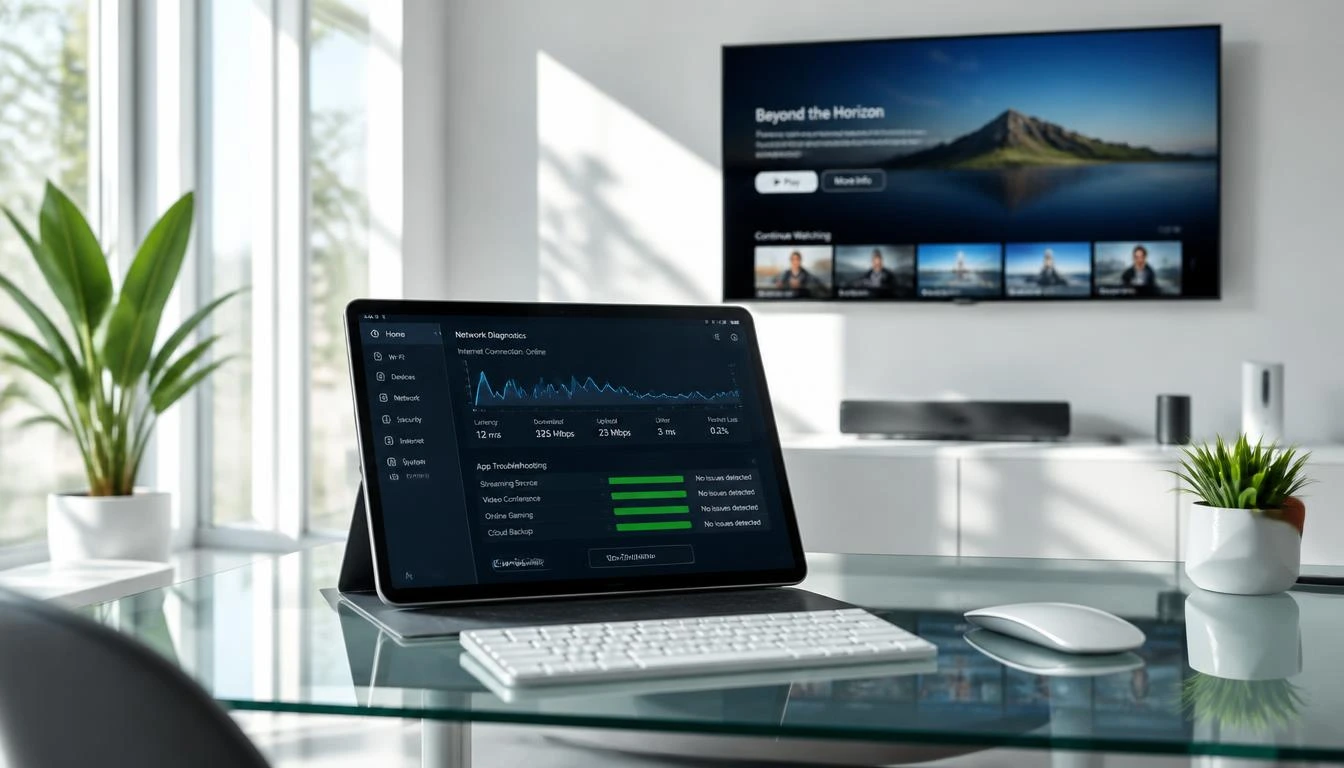
Complete Troubleshooting Directory
- 1. Quick Triage: Why You Experience IPTV Smarters Pro Not Working
- 2. Fix 1: Resolving “Invalid Details” When IPTV Smarters Pro Is Not Working
- 3. Fix 2: Eliminating Black Screen When IPTV Smarters Pro Is Not Working
- 4. Fix 3: Fixing Constant Freezing via Stream Format (HLS vs MPEG-TS)
- 5. Fix 4: Fixing Blank EPG Guides in IPTV Smarters Pro Not Working Scenarios
- 6. Fix 5: Stopping Crashing Bugs When IPTV Smarters Pro Is Not Working
- 7. Fix 6: Bypassing ISP Throttling & DNS Filtering Blocks
- 8. Fix 7: Upstream Server Failures Causing IPTV Smarters Pro Not Working
- 9. Error Matrix: Matching Symptoms of IPTV Smarters Pro Not Working
- 10. Frequently Asked Questions About IPTV Smarters Pro Not Working
- 11. Master Verdict: Solving IPTV Smarters Pro Not Working for Good
Quick Triage: Why You Experience IPTV Smarters Pro Not Working
Before modifying advanced settings, perform a basic diagnostic check. If you find IPTV Smarters Pro not working across all playlists, is the issue affecting a single channel, an entire category (such as Live Sports), or is the application failing to authenticate altogether?
If the app opens but fails to fetch stream data, your issue is network or credential-related. If the app closes abruptly or displays graphical artifacts, the bottleneck lies within your streaming device’s RAM allocation or GPU video decoding engine. Let us address each scenario systematically.
Fix 1: Resolving “Invalid Details” When IPTV Smarters Pro Is Not Working
The most frequent reason for IPTV Smarters Pro not working is the dreaded “Invalid Details” notification upon logging in via Xtream Codes API. Even seasoned streamers make minor formatting mistakes that block the authentication handshake.
How to Verify Your Xtream Codes Syntax:
Check for Hidden Trailing Spaces: Mobile and TV virtual keyboards frequently insert an automatic space after pasting a username, password, or server URL. Delete any trailing spaces.
Port Number Omission: Ensure your Server URL includes the correct port suffix (e.g., http://portal-domain.com:8080). Omitting the colon and port number causes an immediate handshake timeout.
If you find IPTV Smarters Pro not working despite verified credentials, log in to your provider’s client dashboard to verify your subscription has not expired or exceeded its simultaneous active connection limit.
Fix 2: Eliminating Black Screen When IPTV Smarters Pro Is Not Working
A classic technical glitch occurs when you select a 4K 60FPS sports channel: the sound plays clearly through your speakers, but the screen remains completely black. This decoder mismatch leaves IPTV Smarters Pro not working properly when rendering modern H.265 (HEVC) video containers.
To resolve this hardware rendering conflict:
- Open IPTV Smarters Pro and click the gear icon (Settings) in the top right corner.
- Navigate to Player Selection.
- Change the default decoder for Live TV and Movies from Native Player to Built-in Hardware Player (HW) or VLC Player.
- Save changes and restart the live channel feed to eliminate instances of IPTV Smarters Pro not working on high-bitrate feeds.

Fix 3: Fixing Constant Freezing via Stream Format (HLS vs MPEG-TS)
If your playback stutters every 10 seconds during high-stakes live events, the issue often stems from container transport protocols. Addressing transport stream errors is essential when IPTV Smarters Pro not working interrupts your weekend sports viewing.
By default, many subscriptions load channels in raw MPEG-TS (.ts) format, which drops video frames if home Wi-Fi latency spikes. To fix constant buffering when dealing with IPTV Smarters Pro not working:
- Go to Settings > Stream Format.
- Switch the format from Default / MPEG-TS to HLS (m3u8).
- HLS delivers video in adaptive segments, allowing the app’s buffer cache to smooth out minor bandwidth dips without interrupting live playback.
Fix 4: Fixing Blank EPG Guides in IPTV Smarters Pro Not Working Scenarios
When the electronic program guide displays “No Information” across all channels, the local SQLite database storing guide timetables has likely become corrupted. When guide metadata disappears and leaves IPTV Smarters Pro not working as expected, syncing XMLTV data manually restores schedules.
To force an immediate database rebuild:
- Go to Settings > Time Format and verify that your local timezone offset is configured accurately.
- Return to the main settings menu and click Refresh EPG Data.
- Allow the application 30 to 60 seconds to pull fresh XMLTV metadata from the server backbone.
Fix 5: Stopping Crashing Bugs When IPTV Smarters Pro Is Not Working
Streaming devices like Firesticks, Chromecast with Google TV, and budget Android boxes have limited flash memory. Memory leaks frequently leave IPTV Smarters Pro not working on streaming hardware when cache fills past 90% capacity.
To clear cache without deleting your login credentials:
- On Amazon Fire TV: Open Settings > Applications > Manage Installed Applications.
- Select IPTV Smarters Pro and click Clear Cache (do not click Clear Data unless you want to re-enter your login details).
- Click Force Stop, then restart the application for a clean memory allocation.
Fix 6: Bypassing ISP Throttling & DNS Filtering Blocks
If your application functions normally on 4G/5G mobile data but refuses to load channels when connected to your home Wi-Fi router, DNS filtering is a major hidden culprit behind IPTV Smarters Pro not working on home networks.
Many telecom providers deploy Deep Packet Inspection (DPI) during weekend sports matches to throttle streaming ports. To bypass ISP DNS filtering:
- Change your streaming device or router DNS servers to Cloudflare DNS (Primary:
1.1.1.1| Secondary:1.0.0.1) or Google Public DNS (8.8.8.8). - Switching to public encrypted resolvers prevents your ISP from hijacking server domain lookups, immediately solving instances of IPTV Smarters Pro not working due to regional censorship.
Fix 7: Upstream Server Failures Causing IPTV Smarters Pro Not Working
If you have executed all previous technical adjustments and channels continue to fail, the breakdown exists upstream on the provider’s host server. When external host issues leave IPTV Smarters Pro not working, cheap unmetered virtual servers are usually crashing under peak viewer load.
Premium providers like SpaceOTT utilize multi-continental Anti-Freeze 9.0 architecture with dynamic load balancers. Migrating to an enterprise server backbone guarantees that your streams receive dedicated 10 Gbps pipeline bandwidth, eliminating server-side playback errors permanently.
Error Matrix: Matching Symptoms of IPTV Smarters Pro Not Working
Use this quick reference diagnostic matrix to identify why you find IPTV Smarters Pro not working and execute the corresponding technical resolution:
| Observed Error Symptom | Primary Technical Cause | Targeted Actionable Fix |
|---|---|---|
| “Invalid Details / Check Details” | Trailing spaces, wrong port, or expired sub | Remove whitespace, verify port, check sub validity |
| Black Screen with Audio Playing | Native video decoder codec mismatch | Switch decoder in Player Selection to Hardware (HW) |
| Endless Loading / Loop Buffer | MPEG-TS packet drop over Wi-Fi | Switch Stream Format setting from MPEG-TS to HLS |
| App Closes Immediately on Launch | Device RAM leak or corrupted app cache | Clear App Cache in OS settings + Force Stop |
| Blank “No Information” EPG Guide | Outdated XMLTV cache or timezone mismatch | Adjust Time Format + click Refresh EPG Data |
| Works on Mobile, Fails on Home Wi-Fi | ISP DNS blocking or port throttling | Switch DNS to Cloudflare (1.1.1.1) or connect VPN |
Frequently Asked Questions About IPTV Smarters Pro Not Working
This error indicates that your username, password, or server URL was entered incorrectly, your account subscription has expired, or your provider has locked your line due to exceeding simultaneous connection limits.
Navigate to Settings > Player Selection. From there, you can assign different built-in decoding engines (Built-in Hardware Player, Software Player, or VLC Player) for Live TV, Movies, and Series independently.
Yes. Uninstalling or clicking “Clear Data” wipes locally stored credentials and Favorites. If you only want to resolve crashing bugs without losing playlists, choose “Clear Cache” instead.
Smart TV operating systems (Tizen and webOS) restrict background processes. If Smarters freezes, restart your TV by holding the physical remote power button for 5 seconds until the manufacturer logo appears.
Contact your service support team on WhatsApp for an updated DNS portal URL, or switch to an enterprise multi-server provider like SpaceOTT that offers automatic server failover routing.
Verified Reader Troubleshooting Feedback
“My IPTV Smarters Pro was stuck on the buffering circle during live NHL games here in Canada. Switched the stream format from MPEG-TS to HLS as recommended in Fix 3 and it completely resolved the stutter. 4K hockey streams look flawless now!”
“Kept getting ‘Invalid Details’ when entering my portal URL. Realised my Firestick keyboard had added a sneaky space right at the end of the server address. Deleted it and logged in instantly. Super clear guide!”
“I was struggling with IPTV Smarters Pro not working on my Sony Google TV—audio was playing but the screen was completely black on 4K footy channels. Changing the player decoder to Hardware (HW) fixed it in 10 seconds!”
“Excelente guía técnica. Cambié el formato de transmisión a HLS y cambié las DNS a Cloudflare (1.1.1.1). Se acabaron los cortes en los partidos de la Liga MX. ¡Muy bien explicado!”
“Clearing app cache on my Firestick 4K Max stopped the sudden app crashes. Re-synced with my SpaceOTT account and all 20,000 channels loaded up right away.”
“Mi aplicación se cerraba sola en mi Fire TV Stick. Borré la memoria caché siguiendo el paso 5 y volvió a funcionar como nueva sin perder mis canales favoritos de La Liga.”
Master Verdict: Solving IPTV Smarters Pro Not Working for Good
Restoring Flawless Entertainment
Diagnosing why you find IPTV Smarters Pro not working is straightforward once you apply a structured troubleshooting sequence. By verifying credential formatting, selecting Hardware Video Decoding, switching stream formats to HLS, and using high-speed public DNS resolvers, you resolve over 95% of common playback interruptions.
Pair these practical technical optimizations with a verified, multi-server provider like SpaceOTT to enjoy thousands of live international channels, premier 4K sports, and on-demand cinema with total peace of mind!