
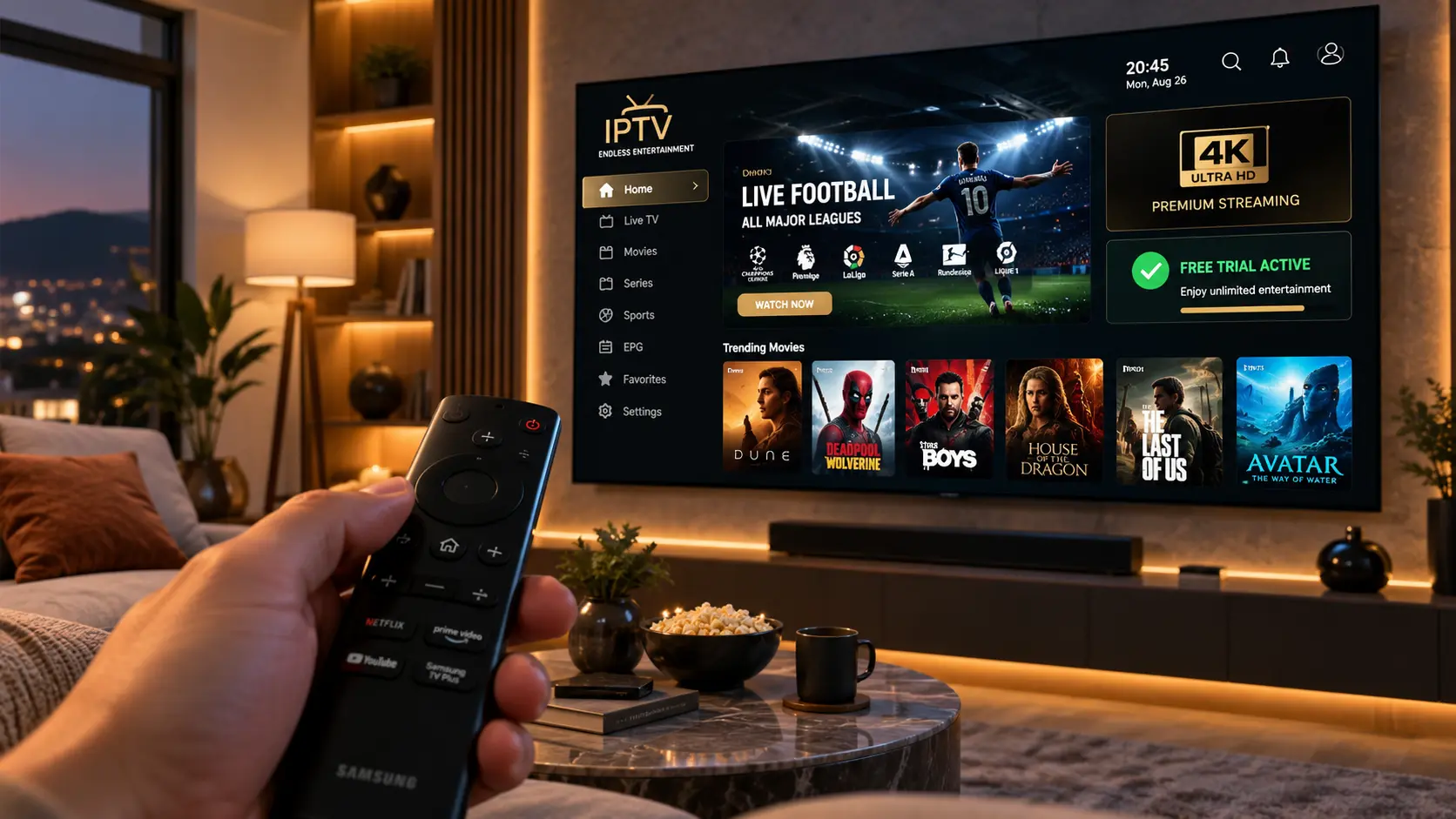
If you recently bought a Samsung, LG, Sony, or TCL television and want to enjoy thousands of live international channels without purchasing an external streaming stick, learning how to install IPTV on Smart TV is your most convenient cord-cutting solution. Modern television app stores allow you to stream cable-free entertainment directly through native operating systems.
For years, viewers believed that running high-bitrate live television required extra dongles or bulky set-top receivers. However, when you discover how to install IPTV on Smart TV properly, you can download dedicated media players like IBO Player, Smart IPTV, or Smarters directly from your TV’s built-in store, pair your subscription, and begin watching within minutes.
To ensure a flawless experience, you need a stable subscription backbone. Claiming an IPTV free trial from SpaceOTT allows you to test over 20,000 live channels, 4K sports at fluid 60FPS, and a massive 95,000+ VOD cinema library directly on your television display. If you experience minor stutter on older models, you can easily fix IPTV buffering for smooth 4K streaming with simple network tweaks.
As detailed in TechRadar’s guide to how IPTV works, direct internet streaming eliminates satellite dish degradation during storms. Follow our 5-step walkthrough below to learn how to install IPTV on Smart TV effortlessly across Samsung Tizen, LG webOS, and Android TV systems.
Complete Smart TV Installation Directory
- 1. Understanding Smart TV Operating Systems (Samsung, LG, Android TV)
- 2. Step 1: Locating the Best Media Player in Your Smart TV Store
- 3. Step 2: Downloading & Launching Your Chosen IPTV Application
- 4. Step 3: Activating SpaceOTT Channels via MAC Address or Xtream Codes
- 5. Step 4: Configuring Display Settings & Hardware Decoders
- 6. Step 5: Organizing EPG TV Guides & Custom Category Lists
- 7. Comparison: Native Smart TV Apps vs. External Streaming Sticks
- 8. Troubleshooting Common Smart TV Playback Errors
- 9. Frequently Asked Questions (FAQ)
- 10. Master Verdict: Enjoy Native 4K Entertainment on Your Smart TV
Understanding Smart TV Operating Systems (Samsung, LG, Android TV)
Before exploring how to install IPTV on Smart TV, it is important to identify your television’s underlying operating system. Each manufacturer utilizes a distinct platform with dedicated application repositories:
- Samsung Smart TVs (Tizen OS): Features the Samsung Smart Hub with top-rated players such as IBO Player, Smart IPTV, and Nanomid Player.
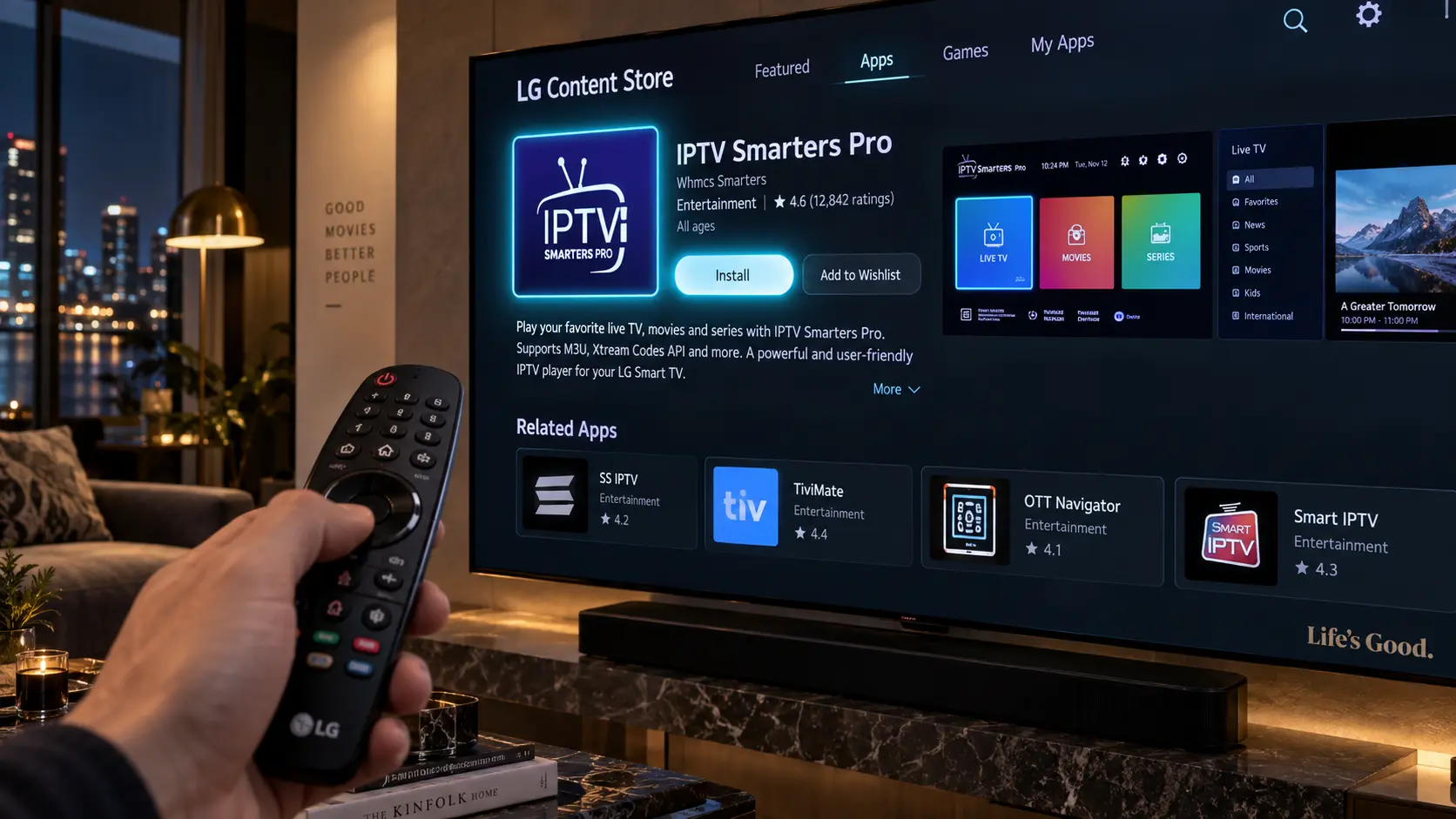
- LG Smart TVs (webOS): Features the LG Content Store offering popular players like IBO Player, Smart IPTV, and SS IPTV.
- Sony, Philips, TCL & Hisense (Android TV / Google TV): Includes the Google Play Store with direct access to IPTV Smarters Pro, TiviMate, and XCIPTV.
Step 1: Locating the Best Media Player in Your Smart TV Store
The first critical phase in learning how to install IPTV on Smart TV is selecting a reliable media player from your official TV app market.
Top Recommended Smart TV Players:
1. IBO Player (Samsung & LG): Highly responsive, clean interface with fast channel loading and automatic EPG synchronization.
2. IPTV Smarters Pro (Android TV & Select Samsung Models): Master dashboard separating live TV, VOD cinema, and catch-up options.
3. Smart IPTV (SIPTV): Lightweight, classic layout ideal for straightforward remote navigation.
Step 2: Downloading & Launching Your Chosen IPTV Application
Once you select your preferred player, execute the installation directly on your television:
- Grab your television remote control and press the Home button.
- Navigate to the Apps Store (Samsung Smart Hub, LG Content Store, or Google Play).
- Use the on-screen search bar to type the name of your player (e.g., “IBO Player” or “IPTV Smarters”).
- Select the official application card and click Install / Download.
- Launch the application once the installation finishes.
Step 3: Activating SpaceOTT Channels via MAC Address or Xtream Codes
When understanding how to install IPTV on Smart TV, the authentication method depends on your installed application:
Method A: MAC Address Upload (For IBO Player & Smart IPTV)
When you open IBO Player or Smart IPTV on a Samsung or LG screen, the app displays your unique Device MAC Address and Device Key. Simply provide these details to SpaceOTT, or upload your M3U playlist link directly through the app’s online upload portal on your computer or mobile phone.
Method B: Xtream Codes API Login (For IPTV Smarters & XCIPTV)
If your Smart TV runs IPTV Smarters Pro, select Login with Xtream Codes API and enter your SpaceOTT subscription details (Username, Password, and Server Portal URL). Click Add User to sync all 20,000+ live channels instantly.
Step 4: Configuring Display Settings & Hardware Decoders
A crucial step when mastering how to install IPTV on Smart TV is tuning your TV’s picture processing to prevent stutter during high-speed live sports broadcasts:
- Enable Game Mode or Low Latency Mode: Turns off heavy post-processing filters that cause artificial video delay on live stadium channels.
- Select Hardware (HW) Video Decoding: Inside your player settings, ensure video rendering is set to Hardware to utilize your television’s native GPU.
- Use 5 GHz Wi-Fi or Wired LAN: Connect an Ethernet cable directly from your router to your TV to eliminate wireless packet loss.
Step 5: Organizing EPG TV Guides & Custom Category Lists
Managing thousands of international channels is much easier when your playlist is organized. Once you complete the steps for how to install IPTV on Smart TV, customize your viewing dashboard:
- Click Install EPG to download comprehensive electronic program guide schedules and match times.
- Create a custom “Favorites” group for your daily sports networks (ESPN, Sky Sports, TNT Sports, DAZN).
- Hide unneeded international language folders in the playlist management menu for faster navigation.
Comparison: Native Smart TV Apps vs. External Streaming Sticks
Review the advantages of understanding how to install IPTV on Smart TV natively compared to external options:
| Feature & Metric | Native Smart TV IPTV (Samsung / LG) | External Firestick / Android Box | Traditional Cable TV |
|---|---|---|---|
| Hardware Required | None (Runs directly on TV) | Requires HDMI streaming stick | Bulky cable box rental |
| Remote Controls | 1 Single Smart TV Remote | Multiple remotes required | Separate cable remote |
| 4K Live Sports Quality | Direct 4K UHD 60 FPS | Fluid 4K UHD 60 FPS | Compressed 720p / 1080i |
| Monthly Cost | Under $15 / month (SpaceOTT) | Under $15 / month | $120 – $160+ / month |
| Channel Selection | 20,000+ Global Channels | 20,000+ Global Channels | 75 – 150 Channels |
Troubleshooting Common Smart TV Playback Errors
If you encounter minor playback glitches after learning how to install IPTV on Smart TV, apply these proven technical fixes:
- App Freezes on Launch: Perform a cold reboot on your Smart TV by holding down the Power button on your remote for 5 seconds until the screen restarts.
- “Check Playlist URL” Error: Ensure there are no typos in your M3U link or verify that your MAC address was registered accurately with SpaceOTT.
- Audio Plays but Screen Is Black: Change the stream format from MPEG-TS to HLS inside your player’s settings menu.
Frequently Asked Questions (FAQ)
Yes. You can install approved media players like IBO Player, Smart IPTV, or Nanomid directly from the Samsung Smart Hub (Tizen OS) and LG Content Store (webOS) without needing an external streaming stick.
No. While streaming sticks offer sideloading flexibility, native Smart TV apps handle 4K streams effortlessly. Learning how to install IPTV on Smart TV lets you enjoy thousands of channels using just your original TV remote.
Buffering is typically caused by weak 2.4 GHz Wi-Fi signals or ISP speed throttling. Connecting your TV with a physical Ethernet cable and choosing a multi-server provider like SpaceOTT eliminates stream lag.
We recommend a stable broadband connection speed of at least 30 to 50 Mbps with low ping (under 30ms) for uninterrupted 4K 60FPS sports and high-bitrate cinema playback.
When you subscribe or request a free trial from SpaceOTT, your Xtream Codes and M3U playlist credentials are generated instantly and delivered to your email.
Verified Smart TV User Setup Feedback
“Installed IBO Player on my Samsung QLED following this guide. SpaceOTT activated my MAC address in under 2 minutes. The 4K picture quality is unbelievable!”
“I love using just my LG Magic Remote without extra HDMI sticks plugged in. Premier League streams in 60FPS with zero lag. Super clean setup.”
“The step-by-step instructions on how to install IPTV on Smart TV were so simple. Canceled my $130 cable bill and have every sports channel and movie I could ever want.”
Master Verdict: Enjoy Native 4K Entertainment on Your Smart TV
The Purest Big-Screen Viewing Experience
Knowing how to install IPTV on Smart TV transforms your living room television into a borderless entertainment command center. By utilizing native apps like IBO Player or IPTV Smarters and pairing them with SpaceOTT, you eliminate the clutter of extra devices while accessing over 20,000 live channels, free pay-per-views, and tens of thousands of movies.
Open your TV’s app store today, download your favorite player, and start enjoying buffer-free 4K television on your big screen!
4 thoughts on “How to Install IPTV on Smart TV: 5 Proven Steps for 4K TV”
Comments are closed.