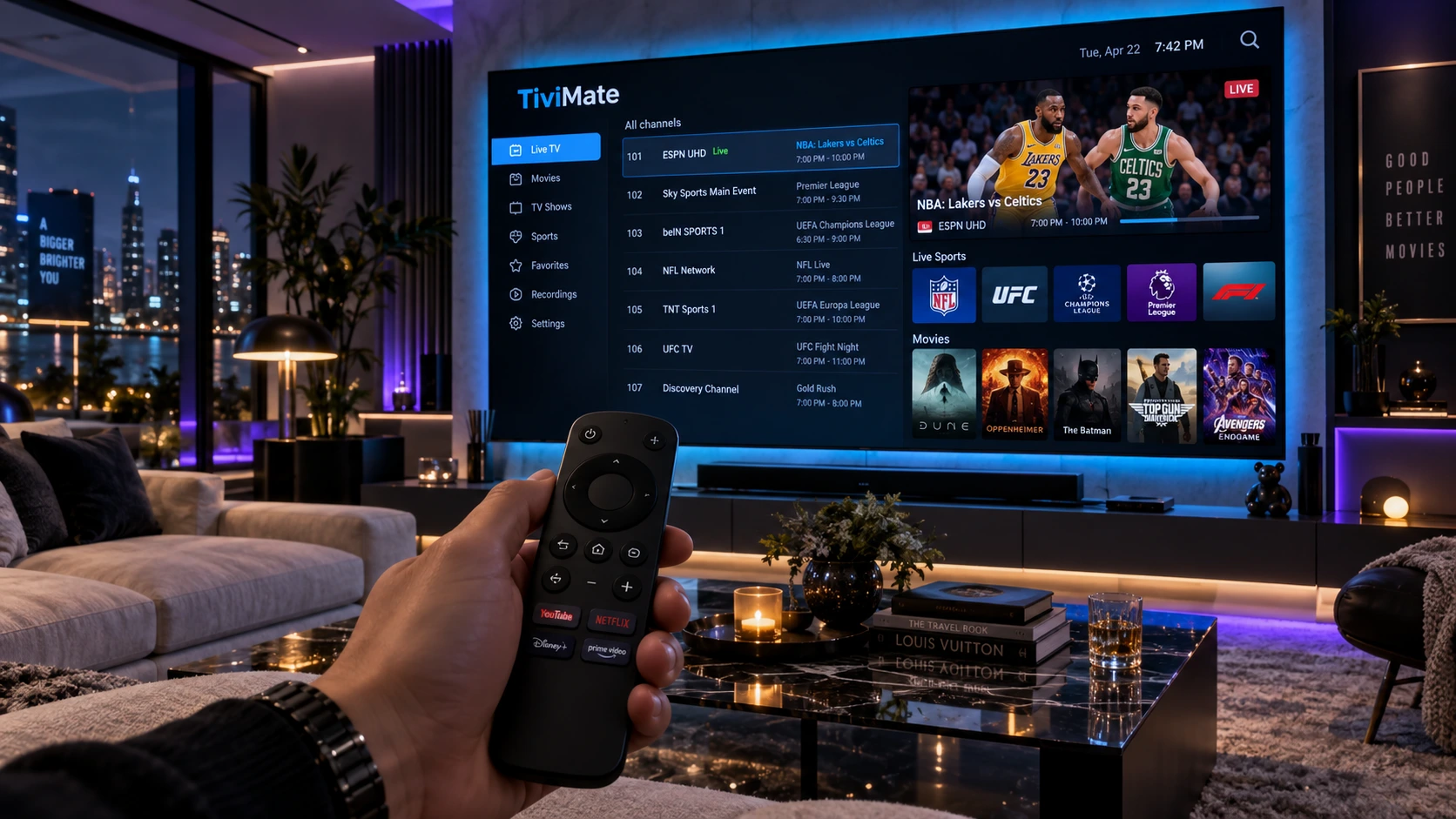
The TiviMate IPTV player is one of the most popular TV-focused IPTV apps for Android TV and Fire TV users who want a clean electronic program guide, playlist management, favorites, playback controls, and multi-screen viewing in one interface.
This guide walks you through a complete TiviMate setup in five practical steps: installing the app, adding a playlist with Xtream Codes, configuring Premium features, adjusting playback, and customizing the EPG. You will also find useful TiviMate settings for smoother playback and common troubleshooting tips.
If you are still choosing a Fire TV service, see our guide to the best IPTV for Firestick. If playback is already stuttering or freezing, use our guide to fix IPTV buffering for smooth 4K streaming. For a broader explanation of IPTV technology, TechRadar’s guide to how IPTV works provides useful background.
Quick TiviMate Setup Checklist
Install the TiviMate IPTV player, add your provider credentials, load the EPG, test a few channels, then adjust decoder and buffer options only if playback is unstable. This order makes troubleshooting much easier.
Complete TiviMate Setup Directory
- 1. Why Use TiviMate IPTV Player?
- 2. Step 1: Install TiviMate IPTV Player
- 3. Step 2: Add a Playlist with Xtream Codes
- 4. Step 3: Configure TiviMate Premium Features
- 5. Step 4: Optimize TiviMate Settings for Playback
- 6. Step 5: Customize EPG, Logos & Channel Groups
- 7. Advanced TiviMate Settings & Multi-Screen
- 8. TiviMate IPTV Player vs. Generic Players
- 9. Troubleshooting Common TiviMate Errors
- 10. TiviMate IPTV Player FAQ
- 11. Final TiviMate Setup Checklist
Why Use TiviMate IPTV Player?
TiviMate is designed for television screens and remote controls, so its interface feels more natural on Android TV and Fire TV devices than apps originally created for phones. Its biggest strength is organization: playlists, favorites, groups, EPG data, and playback options are all accessible from a TV-friendly layout.
A good TiviMate setup can make a large playlist much easier to manage, but remember that TiviMate is a player only. It does not provide live TV channels by itself; you need a compatible IPTV subscription or playlist source.
- TV-style EPG: Browse current and upcoming programs in a familiar grid.
- Favorites and groups: Organize frequently watched channels and hide unwanted categories.
- Playback controls: Adjust decoder, buffer, audio, and display behavior when supported.
- TiviMate multi screen: Premium features can allow multiple live streams to appear on one display, depending on your device and available connections.
- Recording and catch-up support: Availability depends on your provider, device storage, and configuration.
Step 1: Install TiviMate IPTV Player
The first part of your TiviMate setup is installing the app from a trusted source. On Android TV or Google TV, check the official app store on your device. On Fire TV, installation availability can differ by region and device, so use a trusted installation method and avoid random APK websites.
- Android TV / Google TV: Open the app store on the device and search for the official TiviMate app.
- Amazon Fire TV: Use a trusted installation source and confirm the app publisher before installing.
- After installation: Open the app and proceed to the playlist setup screen.
Fire TV Safety Tip
If manual installation is required, enable installation permissions only for the tool you are using, install the app, and then review those permissions again. This reduces unnecessary exposure to untrusted software.
Step 2: Add a Playlist with Xtream Codes
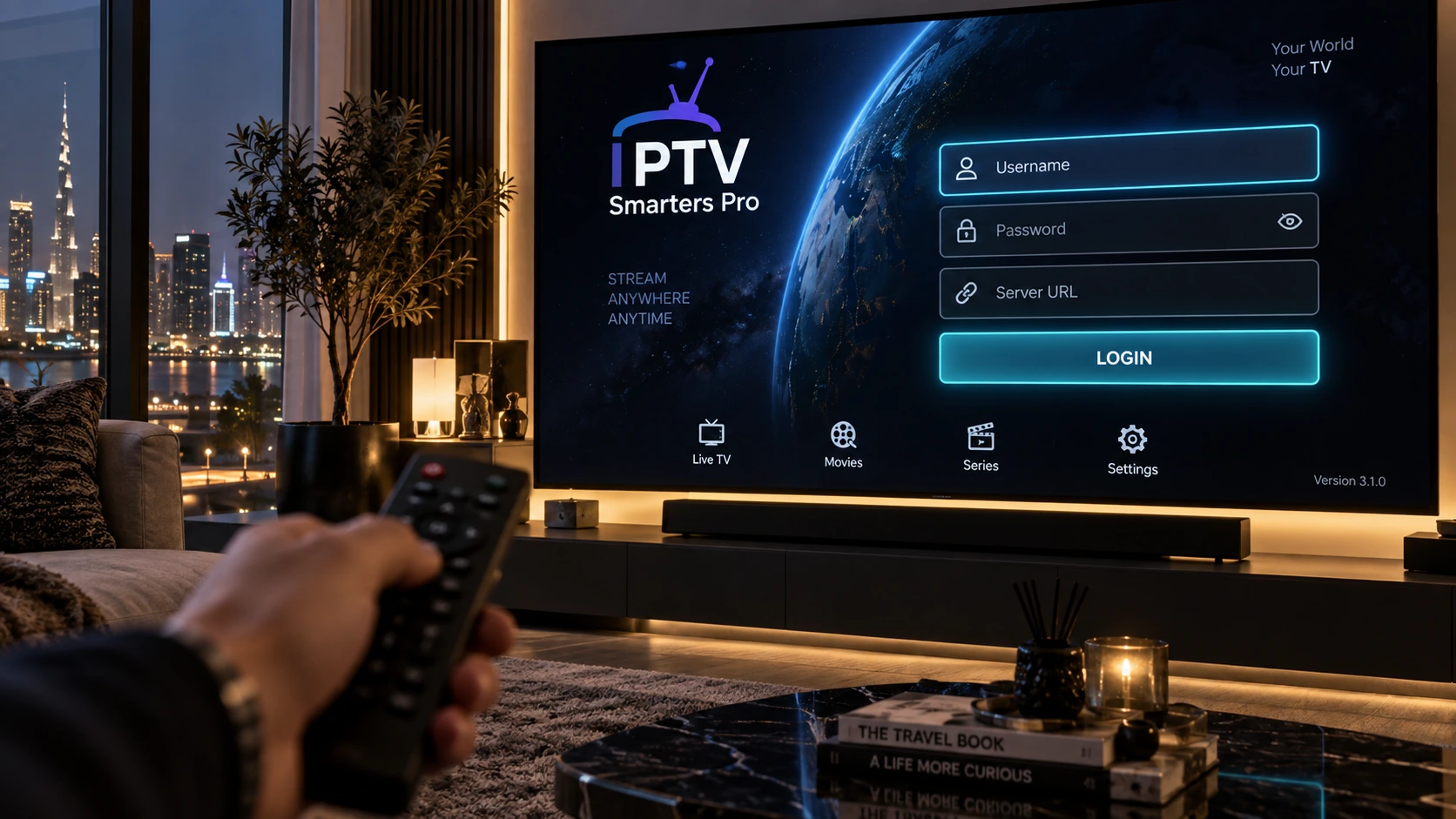
Once TiviMate opens, connect your active subscription. Many providers supply Xtream Codes credentials because they are easy to enter on a television with a remote.
- Select Add Playlist on the welcome screen.
- Choose Xtream Codes if your provider supplied a server URL, username, and password.
- Enter the Server Address, Username, and Password exactly as provided.
- Enable VOD or series categories if your subscription includes them and you want them displayed.
- Allow the playlist and EPG to finish loading before judging performance.
If login fails, recheck every character in the server URL and credentials before changing advanced TiviMate settings. A typing error is often easier to fix than a playback configuration problem.
Step 3: Configure TiviMate Premium Features
The free version of TiviMate can be enough for basic viewing, while Premium unlocks additional organization and playback features. The exact feature set can change by app version, so check the current options shown inside the app before purchasing.
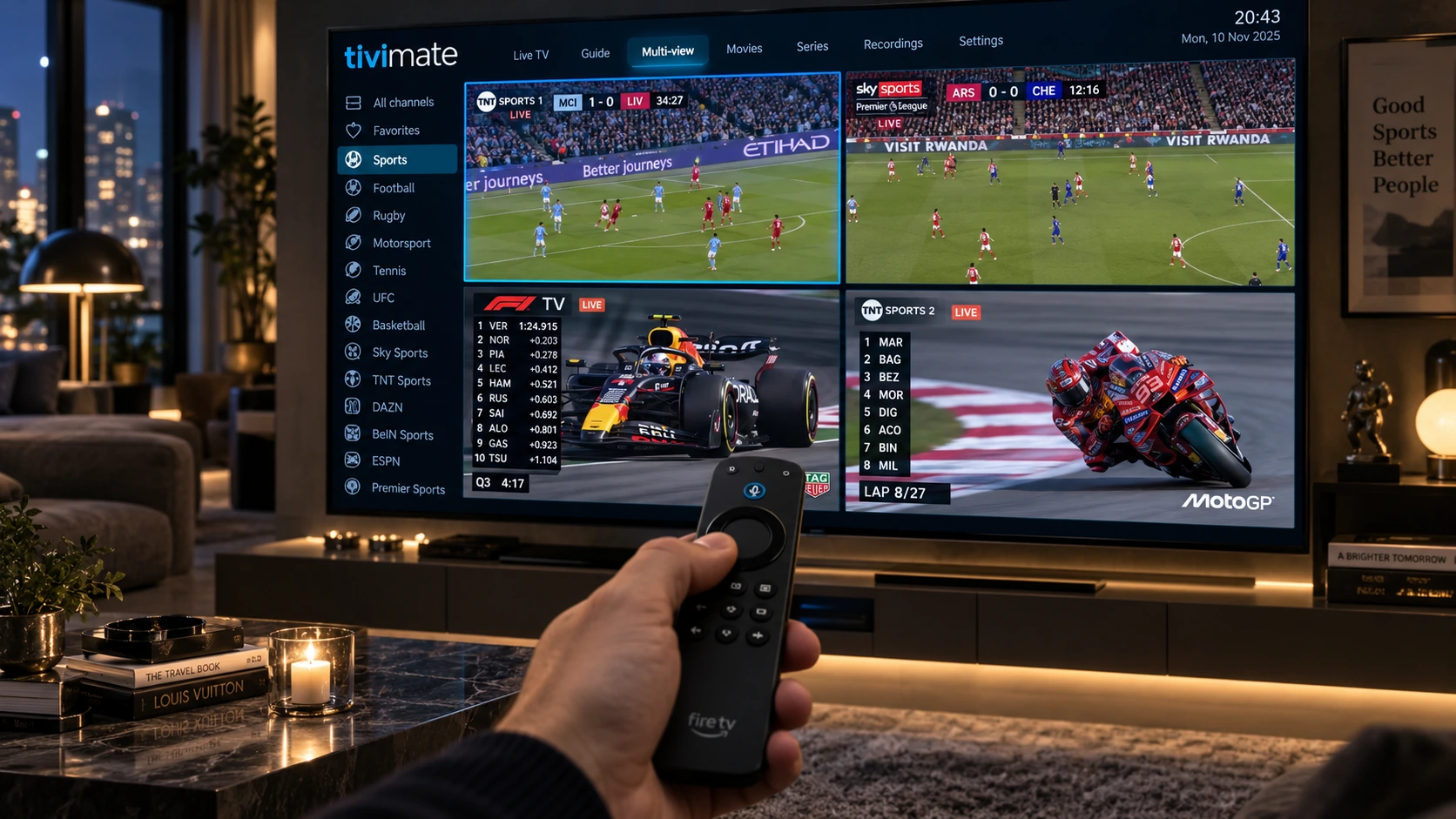
Premium features are most useful for viewers managing multiple playlists, custom groups, favorites, advanced EPG controls, or TiviMate multi screen. Multi-view is demanding because every tile is a separate live stream, so your device performance, internet connection, and provider connection limits all matter.
Step 4: Optimize TiviMate Settings for Playback
Good TiviMate settings should match your device and connection rather than follow one universal configuration. If playback already works well, avoid changing multiple settings at once. When there is a problem, test one option, compare the result, and keep the setting that is more stable.
- Video decoder: Test the available hardware and software decoder options if you see stutter, black screens, or compatibility issues.
- Buffer size: A larger buffer may help with short connection fluctuations, but it can increase channel-start delay.
- Audio settings: If audio is missing or out of sync, compare the available audio decoder and delay options.
- Auto Frame Rate: If supported by your device and television, AFR can match display refresh rate to the video frame rate.
- Network first: If every stream buffers, test 5 GHz Wi-Fi or Ethernet before assuming the player is the cause.
These TiviMate settings are especially useful when 4K or high-frame-rate streams behave differently from ordinary HD channels. Test with more than one channel so you can separate a stream-specific issue from a device-wide problem.
Step 5: Customize EPG, Logos & Channel Groups
One of the main reasons people choose TiviMate is its ability to organize a large playlist. After playback is stable, customize the interface so your most-used channels are easy to reach.
- Create Favorites: Add frequently watched channels to a dedicated favorites group.
- Hide Unused Groups: Disable categories you never watch to reduce menu clutter.
- Update the EPG: Refresh EPG data when schedules are missing or outdated.
- Reorder Channels: Put your most-used channels near the top of your preferred groups.
A clean TiviMate setup is easier to navigate and also makes troubleshooting simpler because you can quickly compare known-good channels with any feed that is having problems.
Advanced TiviMate Settings & Multi-Screen
Advanced TiviMate settings can improve convenience, but they should be enabled only when your hardware and provider support them. Auto Frame Rate can help match the TV refresh rate to the stream, while recording requires enough storage and a stable stream source.
TiviMate multi screen is useful for viewers who want to follow several live events at once. Each extra tile consumes additional bandwidth and may count as another connection with your provider, so verify your subscription limits before opening several streams simultaneously.
TiviMate vs. Generic IPTV Players
TiviMate focuses on a television-first interface and extensive customization. The table below highlights practical differences rather than making unsupported speed or quality guarantees:
| Feature | TiviMate | Basic IPTV Player | What Matters Most |
|---|---|---|---|
| EPG Interface | TV-style grid with customization | Varies by app | Ease of navigation |
| Playlist Organization | Favorites, groups, ordering | Often more limited | Useful with large playlists |
| Playback Settings | Multiple configurable options | Depends on player | Device compatibility |
| Multi-Screen | Available with supported Premium setup | May be unavailable | Bandwidth and connection limits |
| Channel Quality | Depends on the source stream | Depends on the source stream | Provider and network quality |

Troubleshooting Common TiviMate Errors
If TiviMate is not working correctly, identify the symptom before changing several options at once:
- Playlist will not load: Recheck the server URL, username, password, and subscription status.
- EPG shows no information: Refresh the EPG and confirm your provider is supplying valid guide data.
- Audio is out of sync: Use the available audio delay control and make small adjustments while watching the affected stream.
- Black screen: Test another channel, then compare available video decoder modes if the issue affects multiple streams.
- Frequent buffering: Restart the network, test Ethernet or 5 GHz Wi-Fi, and compare a lower-resolution stream before changing more advanced options.
TiviMate Setup FAQ
No. TiviMate is a player application. You must add a compatible IPTV subscription or playlist source separately.
Start by checking your network, then test the available video decoder and buffer-size options one at a time. There is no single setting that is best for every device, stream, or connection.
Choose Add Playlist, select Xtream Codes, and enter the server address, username, and password supplied by your IPTV provider. Allow the playlist and EPG to finish loading before adjusting advanced settings.
Multi-screen displays more than one live stream at the same time. It requires enough device performance and bandwidth, and your IPTV provider must allow enough simultaneous connections for the streams you open.
Recording support depends on the app version, device storage, stream source, and provider. Use a stable connection and enough available storage before relying on scheduled recordings.
Common TiviMate Setup Scenarios
Compare another channel first. If all channels are slow, restart the network and test a stronger connection before increasing the buffer.
Update the EPG and confirm that the playlist source actually includes valid guide data. A player cannot create missing EPG information on its own.
Close one or more tiles and test again. Multiple simultaneous streams increase bandwidth, decoding load, and the number of provider connections required.
Final TiviMate Setup Checklist
Build a Stable, Easy-to-Use TV Setup
A reliable TiviMate configuration starts with a valid playlist and a stable network. Once channels and EPG data load correctly, customize favorites and groups, then fine-tune playback only when a specific problem appears.
The most useful TiviMate settings are the ones that solve a real issue on your device. Test changes one at a time, verify multi-screen connection limits, and keep your TiviMate setup simple enough to troubleshoot quickly.