SpaceOTT

TiviMate IPTV Player: 5 Proven Steps for Complete 4K TV Setup

TiviMate IPTV player setup guide dashboard on 4K smart TV

The TiviMate IPTV player is one of the most popular TV-focused IPTV apps for Android TV and Fire TV users who want a clean electronic program guide, playlist management, favorites, playback controls, and multi-screen viewing in one interface.

This guide walks you through a complete TiviMate setup in five practical steps: installing the app, adding a playlist with Xtream Codes, configuring Premium features, adjusting playback, and customizing the EPG. You will also find useful TiviMate settings for smoother playback and common troubleshooting tips.

If you are still choosing a Fire TV service, see our guide to the best IPTV for Firestick. If playback is already stuttering or freezing, use our guide to fix IPTV buffering for smooth 4K streaming. For a broader explanation of IPTV technology, TechRadar’s guide to how IPTV works provides useful background.

Quick TiviMate Setup Checklist

Install the TiviMate IPTV player, add your provider credentials, load the EPG, test a few channels, then adjust decoder and buffer options only if playback is unstable. This order makes troubleshooting much easier.
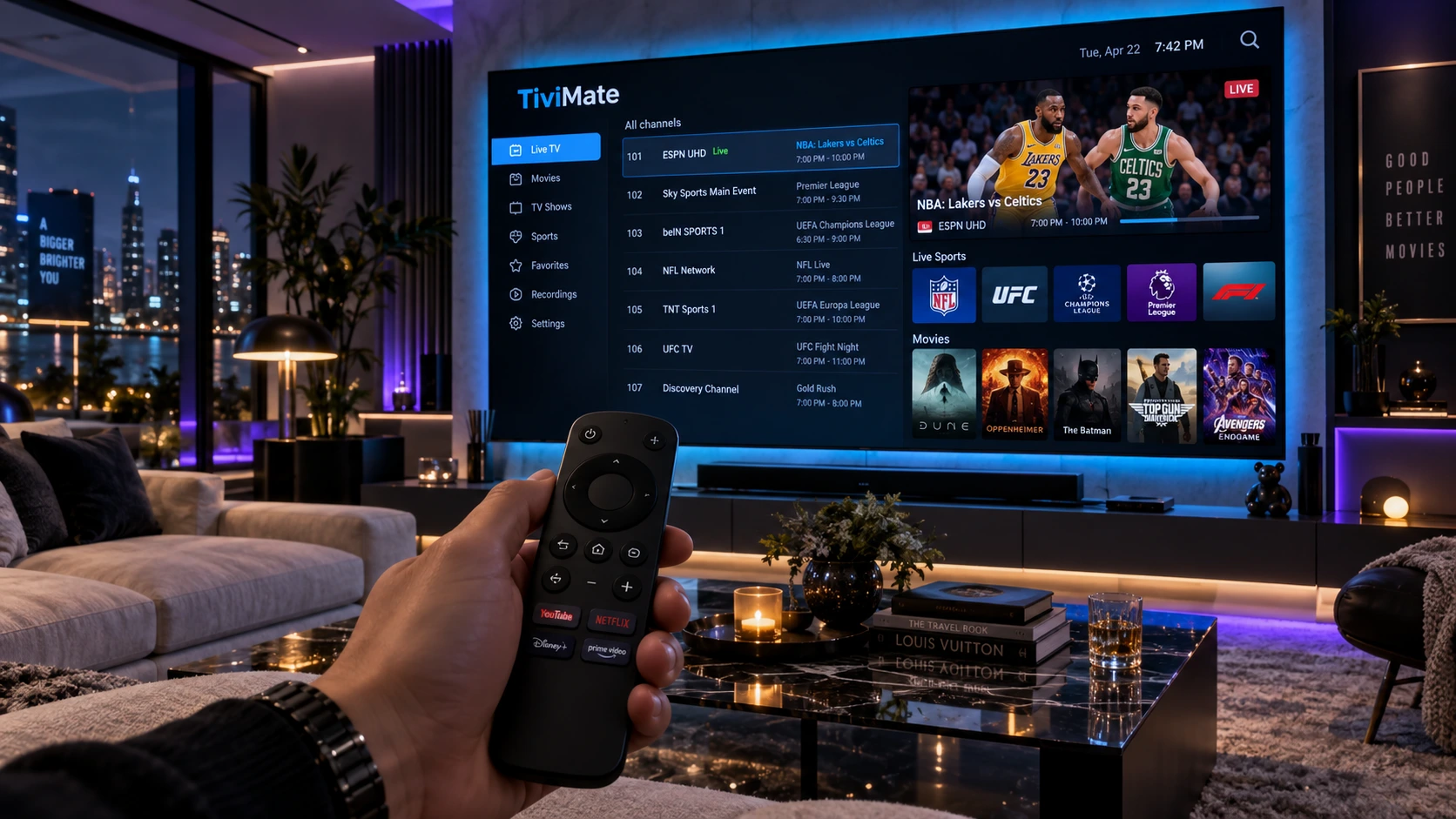
TiviMate IPTV player setup guide dashboard on 4K smart TV
A clean TiviMate IPTV player dashboard makes live TV, EPG browsing, and playlist navigation easier on a television.

Why Use TiviMate IPTV Player?

TiviMate is designed for television screens and remote controls, so its interface feels more natural on Android TV and Fire TV devices than apps originally created for phones. Its biggest strength is organization: playlists, favorites, groups, EPG data, and playback options are all accessible from a TV-friendly layout.

A good TiviMate setup can make a large playlist much easier to manage, but remember that TiviMate is a player only. It does not provide live TV channels by itself; you need a compatible IPTV subscription or playlist source.

  • TV-style EPG: Browse current and upcoming programs in a familiar grid.
  • Favorites and groups: Organize frequently watched channels and hide unwanted categories.
  • Playback controls: Adjust decoder, buffer, audio, and display behavior when supported.
  • TiviMate multi screen: Premium features can allow multiple live streams to appear on one display, depending on your device and available connections.
  • Recording and catch-up support: Availability depends on your provider, device storage, and configuration.

Step 1: Install TiviMate IPTV Player

The first part of your TiviMate setup is installing the app from a trusted source. On Android TV or Google TV, check the official app store on your device. On Fire TV, installation availability can differ by region and device, so use a trusted installation method and avoid random APK websites.

  • Android TV / Google TV: Open the app store on the device and search for the official TiviMate app.
  • Amazon Fire TV: Use a trusted installation source and confirm the app publisher before installing.
  • After installation: Open the app and proceed to the playlist setup screen.

Fire TV Safety Tip

If manual installation is required, enable installation permissions only for the tool you are using, install the app, and then review those permissions again. This reduces unnecessary exposure to untrusted software.

Step 2: Add a Playlist with Xtream Codes

Once TiviMate opens, connect your active subscription. Many providers supply Xtream Codes credentials because they are easy to enter on a television with a remote.

  • Select Add Playlist on the welcome screen.
  • Choose Xtream Codes if your provider supplied a server URL, username, and password.
  • Enter the Server Address, Username, and Password exactly as provided.
  • Enable VOD or series categories if your subscription includes them and you want them displayed.
  • Allow the playlist and EPG to finish loading before judging performance.

If login fails, recheck every character in the server URL and credentials before changing advanced TiviMate settings. A typing error is often easier to fix than a playback configuration problem.
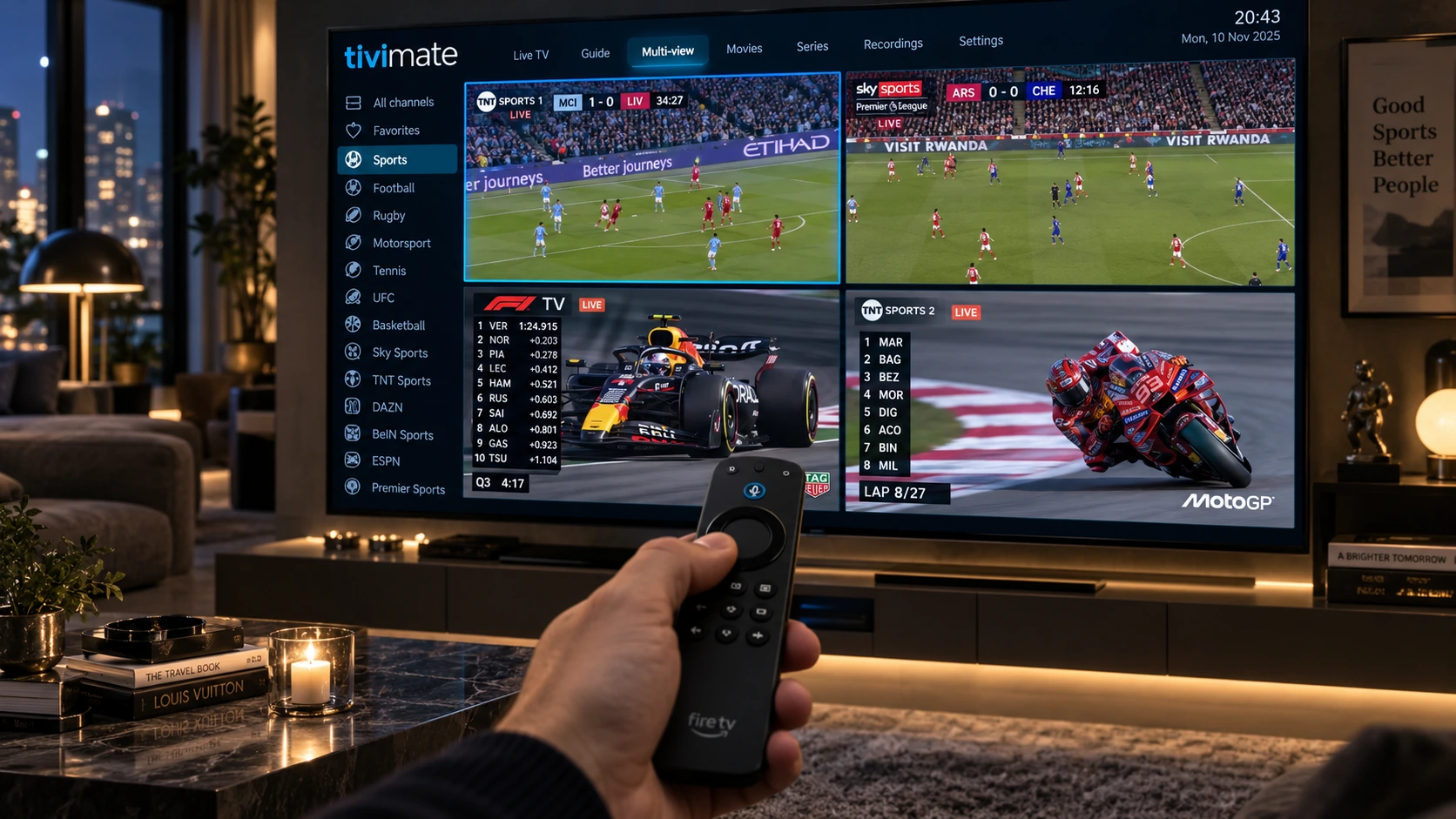
Configuring playlist and settings inside TiviMate IPTV player
Add your provider credentials first, then adjust TiviMate settings only after the playlist and EPG have loaded correctly.

Step 3: Configure TiviMate Premium Features

The free version of TiviMate can be enough for basic viewing, while Premium unlocks additional organization and playback features. The exact feature set can change by app version, so check the current options shown inside the app before purchasing.

Premium features are most useful for viewers managing multiple playlists, custom groups, favorites, advanced EPG controls, or TiviMate multi screen. Multi-view is demanding because every tile is a separate live stream, so your device performance, internet connection, and provider connection limits all matter.

Step 4: Optimize TiviMate Settings for Playback

Good TiviMate settings should match your device and connection rather than follow one universal configuration. If playback already works well, avoid changing multiple settings at once. When there is a problem, test one option, compare the result, and keep the setting that is more stable.

  • Video decoder: Test the available hardware and software decoder options if you see stutter, black screens, or compatibility issues.
  • Buffer size: A larger buffer may help with short connection fluctuations, but it can increase channel-start delay.
  • Audio settings: If audio is missing or out of sync, compare the available audio decoder and delay options.
  • Auto Frame Rate: If supported by your device and television, AFR can match display refresh rate to the video frame rate.
  • Network first: If every stream buffers, test 5 GHz Wi-Fi or Ethernet before assuming the player is the cause.

These TiviMate settings are especially useful when 4K or high-frame-rate streams behave differently from ordinary HD channels. Test with more than one channel so you can separate a stream-specific issue from a device-wide problem.

Step 5: Customize EPG, Logos & Channel Groups

One of the main reasons people choose TiviMate is its ability to organize a large playlist. After playback is stable, customize the interface so your most-used channels are easy to reach.

  • Create Favorites: Add frequently watched channels to a dedicated favorites group.
  • Hide Unused Groups: Disable categories you never watch to reduce menu clutter.
  • Update the EPG: Refresh EPG data when schedules are missing or outdated.
  • Reorder Channels: Put your most-used channels near the top of your preferred groups.

A clean TiviMate setup is easier to navigate and also makes troubleshooting simpler because you can quickly compare known-good channels with any feed that is having problems.

Advanced TiviMate Settings & Multi-Screen

Advanced TiviMate settings can improve convenience, but they should be enabled only when your hardware and provider support them. Auto Frame Rate can help match the TV refresh rate to the stream, while recording requires enough storage and a stable stream source.

TiviMate multi screen is useful for viewers who want to follow several live events at once. Each extra tile consumes additional bandwidth and may count as another connection with your provider, so verify your subscription limits before opening several streams simultaneously.

TiviMate vs. Generic IPTV Players

TiviMate focuses on a television-first interface and extensive customization. The table below highlights practical differences rather than making unsupported speed or quality guarantees:

FeatureTiviMateBasic IPTV PlayerWhat Matters Most
EPG InterfaceTV-style grid with customizationVaries by appEase of navigation
Playlist OrganizationFavorites, groups, orderingOften more limitedUseful with large playlists
Playback SettingsMultiple configurable optionsDepends on playerDevice compatibility
Multi-ScreenAvailable with supported Premium setupMay be unavailableBandwidth and connection limits
Channel QualityDepends on the source streamDepends on the source streamProvider and network quality
Watching live sports on TiviMate IPTV player in crystal clear 4K
Smooth playback depends on the stream source, connection quality, device performance, and properly configured TiviMate settings.

Troubleshooting Common TiviMate Errors

If TiviMate is not working correctly, identify the symptom before changing several options at once:

  • Playlist will not load: Recheck the server URL, username, password, and subscription status.
  • EPG shows no information: Refresh the EPG and confirm your provider is supplying valid guide data.
  • Audio is out of sync: Use the available audio delay control and make small adjustments while watching the affected stream.
  • Black screen: Test another channel, then compare available video decoder modes if the issue affects multiple streams.
  • Frequent buffering: Restart the network, test Ethernet or 5 GHz Wi-Fi, and compare a lower-resolution stream before changing more advanced options.

TiviMate Setup FAQ

Does TiviMate include live channels?

No. TiviMate is a player application. You must add a compatible IPTV subscription or playlist source separately.

What are the best TiviMate settings for buffering?

Start by checking your network, then test the available video decoder and buffer-size options one at a time. There is no single setting that is best for every device, stream, or connection.

How do I complete a TiviMate setup with Xtream Codes?

Choose Add Playlist, select Xtream Codes, and enter the server address, username, and password supplied by your IPTV provider. Allow the playlist and EPG to finish loading before adjusting advanced settings.

How does TiviMate multi screen work?

Multi-screen displays more than one live stream at the same time. It requires enough device performance and bandwidth, and your IPTV provider must allow enough simultaneous connections for the streams you open.

Can TiviMate record live television?

Recording support depends on the app version, device storage, stream source, and provider. Use a stable connection and enough available storage before relying on scheduled recordings.

Common TiviMate Setup Scenarios

Channels load slowly Check network + buffer

Compare another channel first. If all channels are slow, restart the network and test a stronger connection before increasing the buffer.

EPG is empty Refresh guide data

Update the EPG and confirm that the playlist source actually includes valid guide data. A player cannot create missing EPG information on its own.

Multi-screen stutters Reduce active streams

Close one or more tiles and test again. Multiple simultaneous streams increase bandwidth, decoding load, and the number of provider connections required.

Final TiviMate Setup Checklist

Build a Stable, Easy-to-Use TV Setup

A reliable TiviMate configuration starts with a valid playlist and a stable network. Once channels and EPG data load correctly, customize favorites and groups, then fine-tune playback only when a specific problem appears.

The most useful TiviMate settings are the ones that solve a real issue on your device. Test changes one at a time, verify multi-screen connection limits, and keep your TiviMate setup simple enough to troubleshoot quickly.
Best IPTV for Firestick: 5 Proven Picks for Flawless 4K TV

Enjoying smooth 4K live sports on the best iptv for firestick

Finding the best IPTV for Firestick is not only about choosing a subscription. A smooth Fire TV setup depends on three things working together: a compatible IPTV service, a reliable player app, and a stable internet connection. If any one of those is weak, you can still run into buffering, slow channel loading, or playback errors.

This guide compares five practical Firestick IPTV setups and explains which type of user each one suits best. If you are searching for the best IPTV for Firestick, you will also learn how to choose a player, reduce buffering, configure hardware decoding, and install a compatible app on Fire TV.

If you are new to Fire TV, start with our step-by-step Firestick IPTV setup guide. Sports viewers can also see our guide on how to watch live sports and PPV events in 4K. For background on the technology itself, TechRadar’s guide to how IPTV works explains how IPTV delivers television over internet connections.

Quick Answer

The best IPTV for Firestick setup is usually a legitimate IPTV subscription paired with a Fire TV-compatible player such as TiviMate, IPTV Smarters Pro, or XCIPTV. For most users, stability, app compatibility, EPG support, and responsive playback matter more than huge channel-count claims.

Comparing the best IPTV for Firestick setups on a 4K TV
A reliable Firestick IPTV setup combines a compatible service, a stable player, and a strong internet connection.

Why Firestick Works Well for IPTV

Amazon Fire TV devices run Fire OS, an Android-based operating system designed for television. Fire TV supports a wide range of streaming apps, and compatible applications can also be installed manually when they are not available in the Amazon Appstore.

That flexibility is one reason many viewers search for the best IPTV for Firestick. Newer Fire TV Stick 4K models can handle HEVC/H.265 video, modern Wi-Fi standards, and high-resolution playback, but actual stream quality still depends on the source, your network, and the player configuration.

  • App flexibility: Multiple IPTV players are available for Fire TV, making it easier to build the best IPTV for Firestick setup for your needs.
  • Remote-friendly interface: Popular players are designed for television navigation.
  • 4K-capable hardware: Supported Fire TV models can play compatible 4K streams.
  • Easy troubleshooting: Cache, app, decoder, and network settings can be adjusted directly on the device.

Pick 1: SpaceOTT – Service Option for Fire TV Users

SpaceOTT is the IPTV service offered by this website, so it should be considered as one service option rather than an independent third-party recommendation. For anyone evaluating the best IPTV for Firestick, the important checks are Fire TV compatibility, playlist or Xtream Codes support, channel availability in your region, stream stability, and whether a trial or short-term plan is available before committing.

When comparing any IPTV subscription for the best IPTV for Firestick experience, verify the current package details directly because channel lineups, VOD libraries, server availability, and pricing can change over time.

  • Fire TV compatibility: Confirm that the service works with the player you plan to use.
  • EPG support: A working electronic program guide makes live TV easier to navigate.
  • Multiple stream qualities: HD and lower-resolution options can help when bandwidth varies.
  • Short-term testing: A trial or short plan lets you test local performance before paying for a longer period.

What to Test Before Choosing a Provider

Test several channels at peak viewing hours, check how quickly channels open, confirm that the EPG loads correctly, and compare live TV with VOD playback. Those real-world checks are more useful than relying only on advertised channel totals or uptime percentages.

Pick 2: TiviMate – Best Cable-Style Player Interface

TiviMate is an IPTV player rather than an IPTV subscription. It is popular on Fire TV because its interface resembles a traditional cable or satellite guide and gives users detailed control over playlists, favorites, EPG data, and playback settings.

For users who want the best IPTV for Firestick experience with a polished television-style layout, TiviMate is a strong player option when paired with a compatible subscription.

  • TV-style guide: A grid-based EPG makes channel browsing familiar.
  • Favorites and groups: Organize channels without scrolling through a long master list.
  • Playback controls: Decoder and buffer-related options can help troubleshoot difficult streams and improve a best IPTV for Firestick configuration.

Pick 3: IPTV Smarters Pro – Easy Setup for Beginners

IPTV Smarters Pro is another player interface that can organize live TV, movies, and series from a compatible IPTV service. Its straightforward layout makes it useful for households that want simple navigation without spending much time customizing the interface.

If your priority is easy login and familiar content categories, this type of player can be part of a practical best IPTV for Firestick setup.

  • Simple dashboard: Live TV, movies, and series are separated into clear sections, which helps beginners create a simple best IPTV for Firestick setup.
  • Playlist login: Compatible services can generally be added through supported credentials or playlists.
  • External player support: Some versions can hand playback to another compatible media player.
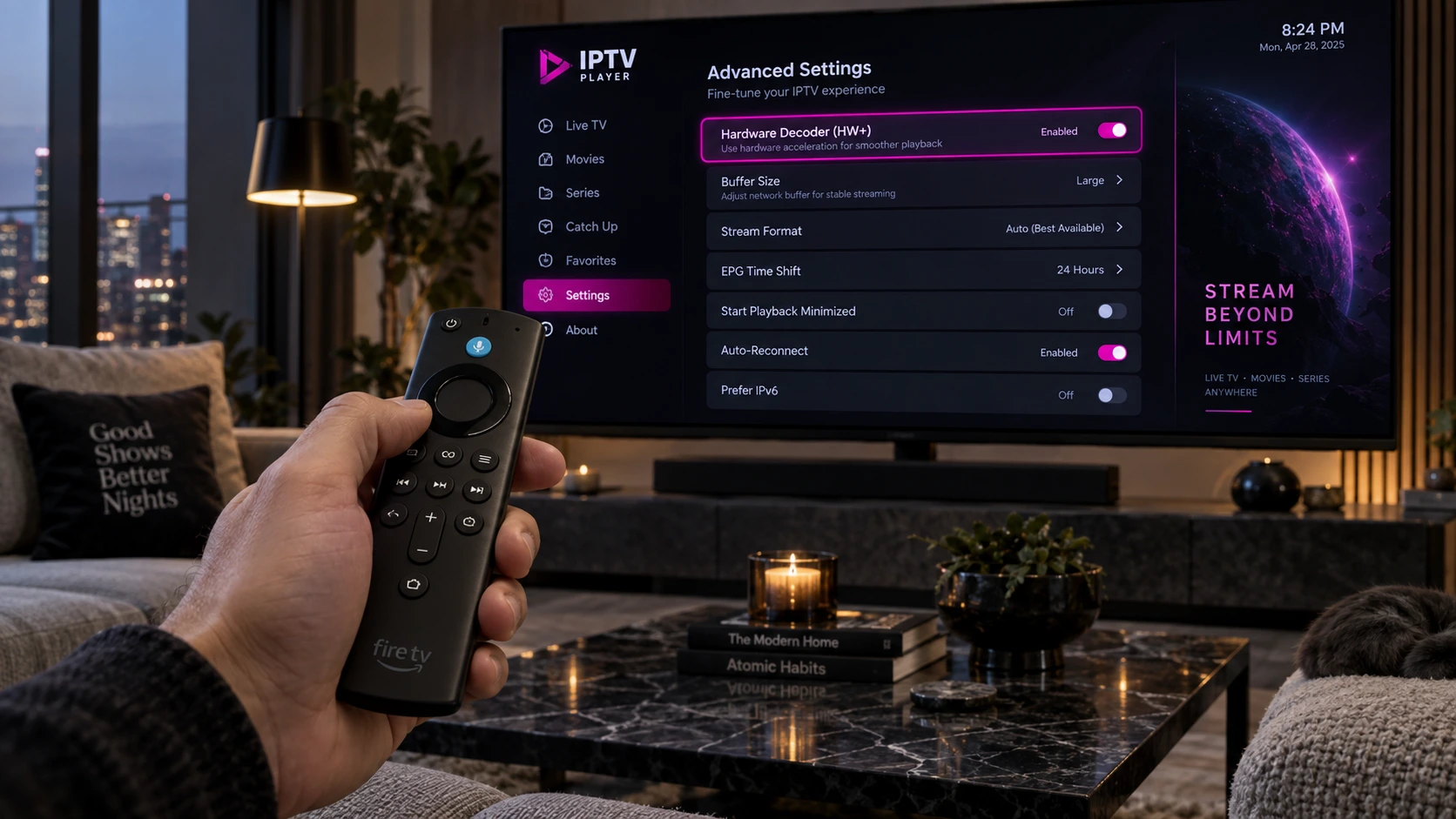
Player settings for the best IPTV for Firestick setup
Player settings such as hardware decoding can affect Fire TV playback stability.

Pick 4: XCIPTV – Flexible Player for Live TV

XCIPTV is a player interface commonly used with compatible IPTV subscriptions. It provides live TV, EPG, VOD, and playback controls in a remote-friendly layout.

For people comparing the best IPTV for Firestick players, XCIPTV is worth testing if you prefer its interface or if it performs more smoothly with your particular device and stream source.

  • Live TV and VOD sections: Keeps different content types organized.
  • Multiple playback options: Player behavior can vary by device and stream format.
  • Remote-friendly layout: Designed for television navigation rather than touch-only use.

Pick 5: Budget Secondary IPTV Setup

A low-cost secondary subscription can be useful for viewers who want a backup source, but price alone should not determine the best IPTV for Firestick. Very cheap services may offer inconsistent support, unstable servers, outdated EPG data, or unclear licensing.

Before using any service, check its terms, content rights, refund policy, supported devices, and whether the channels you want are legally available in your location.

Firestick IPTV Comparison Table

The table below separates IPTV services from player apps so you can compare the role each option plays when building the best IPTV for Firestick setup:

OptionTypeBest ForMain StrengthImportant Note
SpaceOTTIPTV serviceUsers evaluating this site’s serviceCompatible IPTV accessVerify current package details and local performance
TiviMatePlayer appPower usersTV-style EPG and customizationRequires a separate compatible IPTV subscription
IPTV Smarters ProPlayer appBeginners and familiesSimple live TV/VOD navigationRequires provider credentials or playlist access
XCIPTVPlayer appUsers testing alternative playersRemote-friendly live TV interfacePerformance depends on device and stream source
Budget secondary setupService categoryBackup viewingLower costCheck reliability, support, and content rights carefully

How to Reduce Firestick IPTV Buffering

Even the best IPTV for Firestick can perform poorly if the device or network is unstable. Work through these checks before blaming the subscription:

  • Use 5 GHz Wi-Fi or Ethernet: A cleaner, stronger connection can reduce packet loss and short playback interruptions, which is essential for the best IPTV for Firestick performance.
  • Restart the Firestick and router: A reboot can clear temporary network and memory problems.
  • Test hardware decoding: If your player offers hardware and software decoding modes, compare them and keep the one that works best on your device.
  • Clear app cache when necessary: If an app becomes slow or unstable, clearing temporary cache can help without deleting account data.
  • Close unused background apps: Freeing memory can help on lower-powered Fire TV models.
  • Lower stream resolution: If 4K buffers but 1080p works smoothly, bandwidth or device performance may be the limiting factor.
  • Test DNS only when appropriate: Changing DNS can help with name-resolution issues, but it does not increase your raw internet speed or automatically bypass throttling.

Firestick IPTV Installation Steps

Once you have a legitimate subscription and a compatible player, setting up the best IPTV for Firestick configuration is usually straightforward:

  • Step 1: Choose a compatible player: Use an app available from a trusted source and confirm that it supports your subscription format.
  • Step 2: Install the player: Use the Amazon Appstore when available. If an app requires manual installation, use the developer settings only for software you trust.
  • Step 3: Add your subscription: Enter the playlist or login credentials supplied by your legitimate IPTV provider.
  • Step 4: Load the EPG and test channels: Check several channels, including at busy viewing times.
  • Step 5: Tune playback settings: If needed, test decoder mode, stream quality, and network connection to complete your best IPTV for Firestick setup.
Smooth 4K playback with the best IPTV for Firestick setup
A stable network and properly configured Fire TV player are essential for smooth high-resolution streaming.

Best IPTV for Firestick FAQ

What is the best IPTV for Firestick?

The best option depends on the service you are legally subscribed to, the channels you need, and how well it performs on your connection. For the player side, TiviMate, IPTV Smarters Pro, and XCIPTV are common Fire TV-compatible options. Test your chosen service during peak hours before committing to a long plan.

What is the best IPTV player for Firestick?

TiviMate is a popular choice for users who want a cable-style EPG and extensive customization. IPTV Smarters Pro is easier for beginners, while XCIPTV is another useful alternative. The best player is the one that works reliably with your provider and Fire TV model.

Does IPTV work on Amazon Firestick?

Yes. Fire TV devices can run compatible IPTV player apps. You still need a legitimate IPTV service or playlist source; the player itself does not provide television channels.

Do I need a VPN with IPTV on Firestick?

A VPN is not automatically required for IPTV. Some users choose one for privacy or when traveling, but a VPN can also reduce speed. Use IPTV services and content in accordance with applicable laws and provider terms.

Which Firestick model is best for 4K IPTV?

A current 4K-capable Fire TV model is the better choice if you plan to stream 4K content. Your actual results also depend on Wi-Fi quality, available bandwidth, codec support, and the quality of the stream source.

Common Firestick Setup Scenarios

Buffering on live sports Check network first

Test 5 GHz Wi-Fi or Ethernet, restart the router, compare another channel, and lower the stream resolution. If only one feed buffers, the problem may be upstream rather than your Firestick.

App feels slow Check device resources

Close unused apps, restart the Firestick, and clear the player’s cache if necessary. Avoid deleting app data unless you are prepared to enter your credentials again.

Video stutters but internet speed is fine Check playback settings

Compare hardware and software decoding modes and test a lower stream quality. Decoder compatibility can differ between Fire TV models and player apps.

Final Firestick Setup Checklist

Choose the Setup That Works on Your Network

The best IPTV for Firestick is a combination of a legitimate service, a compatible player, and a stable network. Start by choosing a provider that supports Fire TV, then test TiviMate, IPTV Smarters Pro, or XCIPTV to see which interface and playback engine work best for you.

Before paying for a long subscription, test real-world performance at the times you normally watch. Stable playback, accurate EPG data, responsive support, and transparent service terms matter more than exaggerated channel counts or unsupported “zero buffering” promises.

IPTV on Firestick: 7 Easy Steps for the Ultimate Setup

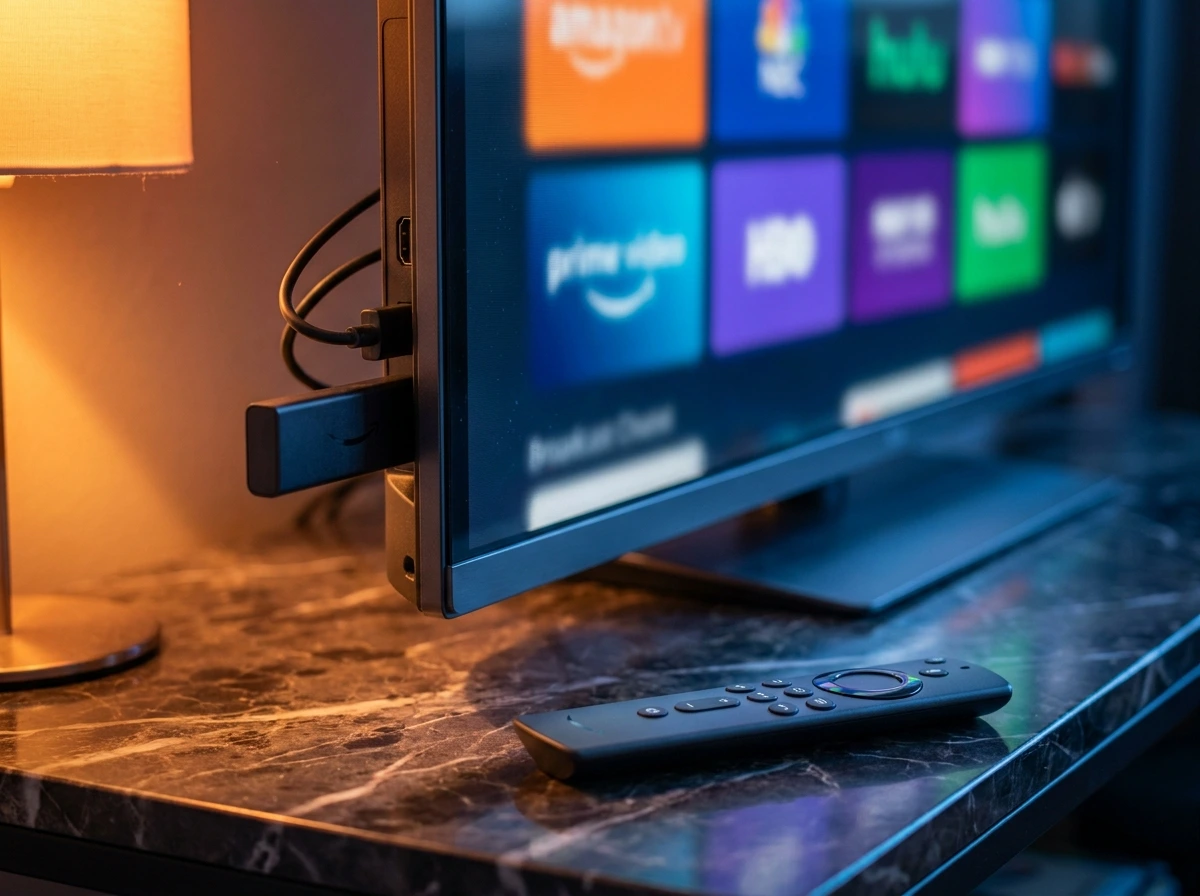
Plugged Amazon Fire TV Stick ready for IPTV on Firestick configuration

If you recently bought an Amazon Fire TV device to cut your cable costs, setting up IPTV on Firestick is your absolute best move. Traditional cable packages trap users in expensive multi-year contracts, heavy equipment rentals, and rigid programming schedules.

Transitioning to modern digital streaming gives you complete freedom over your home entertainment. When you configure IPTV on Firestick correctly, you unlock instant access to over 20,000 live international channels, local broadcasts, 24/7 news networks, high-stakes sports pay-per-views, and massive on-demand movie libraries loaded with over 95,000 titles.

However, because Amazon’s default Appstore maintains strict security filters and restricts certain third-party media players, installing external streaming tools requires a specific series of configuration steps. Many beginners wonder how to unlock installation permissions securely, which sideloading utilities are completely safe, or how to properly link subscription credentials from the best IPTV service available on the market today.

That is precisely why we put together this exhaustive, master-level blueprint. Designed with absolute beginners and seasoned streaming enthusiasts in mind, this comprehensive guide will walk you through every single nuance of device optimization, application sideloading, decoder adjustment, and safe network navigation. Follow along carefully, and you’ll transform your simple streaming stick into an elite 4K home entertainment hub in less than ten minutes.

Plugged Amazon Fire TV Stick ready for IPTV on Firestick configuration
Connecting and preparing your Fire TV Stick is the first step toward endless 4K streaming.

Understanding the Fire TV Ecosystem and IPTV on Firestick

Before making any software modifications, let’s look at how the hardware works. Amazon’s Fire OS runs on an open-source Android foundation. This core Android system gives users incredible flexibility compared to closed hardware boxes like Apple TV.

This underlying architecture is what allows third-party app sideloading for your IPTV on Firestick setup. When running media players, your device CPU and GPU handle real-time stream decoding.

Older models may struggle with high-bitrate sports feeds, whereas 4K Max sticks process heavy codecs effortlessly. Understanding your hardware limits ensures a smooth viewing experience without unexpected thermal throttling or dropped frames.

Why Modern Viewers Are Transitioning to IPTV on Firestick

The broadcasting landscape has shifted dramatically over recent years. Traditional cable bills have skyrocketed past $100 per month, frustrating everyday consumers.

By learning how to configure IPTV on Firestick, households save hundreds of dollars annually while gaining access to global content. You are no longer bound by local broadcast restrictions or expensive regional sports packages.

Furthermore, cloud-based VOD libraries allow you to watch movies and series instantly on demand. This flexibility explains why millions of users across the globe are making the permanent switch today.

Step 1: Pre-Configuration Audit and Firmware Updates

Skipping system updates causes random application crashes. Keeping your firmware patched ensures full app compatibility and optimal network packet handling.

As noted in TechRadar’s guide to using an Amazon Fire TV Stick, routine updates stabilize wireless connectivity and improve overall device performance.

To check for updates, go to your Fire TV home dashboard. Click Settings, select My Fire TV, click About, and choose Check for Updates. Let the system install any pending patches and reboot cleanly.

Step 2: Sourcing and Installing the Official Downloader Utility

Amazon’s default browser blocks direct file downloads for security reasons. Because of this, you need a safe utility tool called Downloader by AFTVnews to fetch external APK files safely.

  • Go to your Firestick home screen and select the Find search tab.
  • Type “Downloader” using your remote control keypad.
  • Select the orange application card and click Download.
  • The app will install automatically in a matter of seconds.

Step 3: Unlocking Hidden Developer Options for IPTV on Firestick

By default, Amazon blocks external APK installations to protect casual users. To run IPTV on Firestick smoothly, you must unlock developer settings manually.

The 7-Click Developer Shortcut

Go to Settings > My Fire TV > About. Highlight your device name and click the Select button 7 times rapidly until you see the developer notice appear at the screen bottom.

Return to the previous menu, open the newly revealed Developer Options, select Install Unknown Apps, and turn ON the permission specifically for Downloader.

Step 4: Sideloading and Configuring Your Primary Media Player

With permissions unlocked, open Downloader. Grant storage permissions if requested by clicking Allow so the app can save installation files.

Type the download shortcode or URL for your chosen player in the input field. Once downloaded, select Install to complete the process for your IPTV on Firestick environment.

Expert Pick: Best Media Players for IPTV on Firestick

Choosing the right application is vital for your daily entertainment. Here are the top three most stable players you can run on your device:

  • Tivimate: The absolute crown jewel featuring a stunning cable-like EPG guide, multi-screen views, and advanced buffer management.
  • IPTV Smarters Pro: Extremely user-friendly interface that organizes live television, movies, and VOD series into gorgeous master dashboards.
  • XCIPTV Player: Lightweight and optimized specifically for smooth remote control navigation on Amazon Fire TV hardware.
Browsing live channels and VOD libraries after setting up IPTV on Firestick
Easily navigate through thousands of global channels and movies from your living room.

Step 5: Securely Authenticating Your Subscription Credentials

Launch your installed media player. You must link your account using your subscription details to activate IPTV on Firestick successfully.

  • Xtream Codes API: Enter your Username, Password, and Server Portal URL. This is the most reliable login method.
  • M3U Playlist URL: Paste the direct web link containing your secure channel tokens.
  • MAC Address: Register your hardware network identifier directly with your provider’s portal.

Once authenticated, browse our complete IPTV channels list to see all available international categories.

Step 6: Advanced Troubleshooting and Anti-Freeze Optimization

Default player settings are rarely optimized out of the box. To prevent lag during live sports, adjust these player parameters:

  • Hardware Decoder: Switch decoding preferences from Software to Hardware Decoding (HW or HW+).
  • Buffer Allocation: Set your buffer size allocation to “Large” to absorb minor internet speed drops seamlessly.

Common Setup Errors and Quick Technical Fixes

Even with careful steps, minor issues happen. Here is how to fix them when configuring IPTV on Firestick:

  • Parse Error: The APK file downloaded incompletely. Re-download it fresh via Downloader.
  • Authentication Failed: Double-check your Xtream Codes username and password for any accidental spaces.
  • Black Screen: Switch your player video decoder from Hardware back to Software decoding.

Step 7: Organizing EPG Guides and Customizing Channel Lists

Managing thousands of channels can be tiring. Spend a few minutes creating custom “Favorites” folders for your top sports networks and news stations.

Hiding redundant regional duplicates cleans up your master directory. Proper organization makes your daily channel browsing much faster and more enjoyable.

Essential Security and Network Privacy Best Practices

Maintain proper network security by using WPA3 router encryption. Keep your device firmware updated and avoid downloading unverified APK files from unknown internet forums.

Technical Comparison: Default Setup vs. Optimized IPTV Player

Review the performance benefits of using a fully configured player for IPTV on Firestick:

Performance MetricUnoptimized Default SetupFully Optimized IPTV Player
Channel Switching SpeedSlow (3 to 6 seconds delay)Instantaneous (Under 1 second)
Video Decoder EngineSoftware-dependent (High CPU load)Hardware Accelerated (HW+ GPU)
Buffer ManagementProne to micro-stuttersLarge pre-load cache stability
EPG Data SyncFrequently fails or drops metadataAuto-updating structured guides

Frequently Asked Questions (FAQ)

Is the Downloader app safe and fully authorized on Amazon Fire TV?

Yes, Downloader is an official, completely legitimate utility application developed by AFTVnews and is hosted safely inside the official Amazon Appstore for global users.

Why does my streaming buffer during major live soccer matches?

Buffering is usually triggered by Wi-Fi interference, ISP bandwidth throttling during high-demand events, or heavy local cache buildup. Ensuring a stable 15+ Mbps broadband connection resolves most bottlenecks.

Can I configure this setup without using the Downloader application?

Yes, alternative file-transfer tools like “Send Files to TV” can be utilized, but Downloader remains by far the fastest and most reliable method for everyday Firestick users.

What media player application runs best on modern Amazon hardware?

Applications like IPTV Smarters Pro, Tivimate, and XCIPTV are widely recognized by industry experts as the most stable and feature-rich media players for Fire TV hardware.

Do I need a virtual private network (VPN) to watch streams?

While a VPN is generally optional, elite service providers utilize advanced routing protocols that bypass ISP speed throttling naturally, meaning most users stream smoothly without extra software.

Verified Reader Setup Feedback

Michael R. 🇺🇸 (Chicago) ⭐⭐⭐⭐⭐

“The developer options trick made installing Downloader a breeze. Followed these exact steps and had my service running in less than 7 minutes!”

Mark S. 🇬🇧 (Manchester) ⭐⭐⭐⭐⭐

“Very clear and easy instructions. Adjusting the hardware decoder settings as suggested completely fixed my minor audio sync issues.”

Lucas M. 🇨🇦 (Montreal) ⭐⭐⭐⭐⭐

“As a complete beginner to streaming devices, this guide walked me through sideloading without any headache. Highly recommended!”

Streaming sports and movies smoothly with a completed IPTV on Firestick setup
Sit back, relax, and enjoy buffer-free live sports and cinema in ultimate comfort.

Expert Verdict: Enjoying Buffer-Free Streaming

Mastering Your Fire TV Setup

Configuring IPTV on Firestick is a straightforward process once you understand how to unlock developer options and load a reliable media player. By following these 7 simple steps, you bypass the high costs of traditional cable and unlock a world of limitless 4K entertainment right in your living room.

Make sure your device remains updated, maintain a stable internet connection, and enjoy your favorite live channels and movies without interruption!

error: Content is protected !!