SpaceOTT

IBO Player: 7 Powerful Steps for an Easy IPTV Setup

IBO IPTV Player streaming smoothly on a living room television

IBO Player can feel confusing the first time you open it. Instead of finding channels immediately, you may see device information and a mostly empty interface.

That is normal. The application is a media player, not a television subscription. It provides the interface used to organize and play compatible content, while the playlist or account details must come from a source you are authorized to use.

Once that difference is clear, setup becomes much easier. This guide walks through installation, playlist configuration, common problems, network optimization, and the main things to check before using the player regularly on your television.
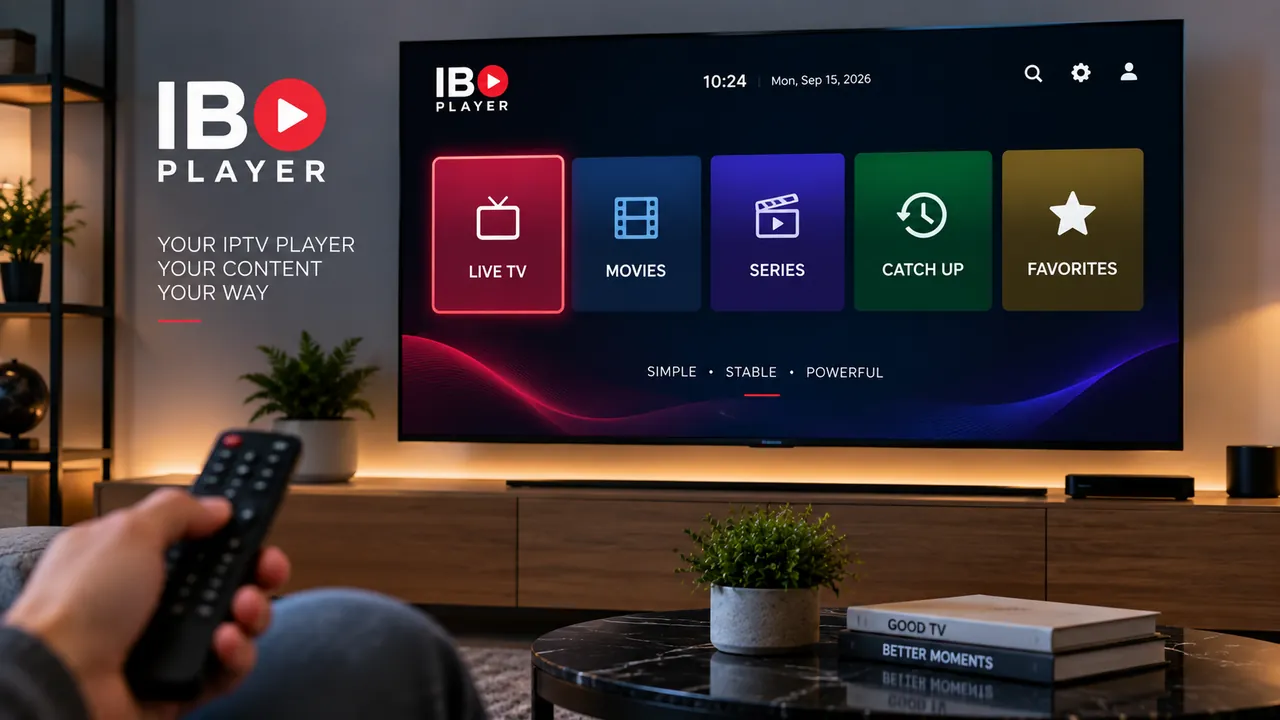
IBO Player IPTV setup on a modern Smart TV
The media player provides the viewing interface while your compatible playlist supplies the content.

1. What Is IBO Player?

IBO Player is an IPTV media player designed to load and display compatible playlists supplied by the user. It should not be confused with the company or service that provides your television content.

The application itself does not automatically include live channels, sports packages, movies, or series. Installing it gives you the software used to browse and play media from a compatible source.

This is why a fresh installation can appear empty. The app needs valid playlist information before it has anything to display.

Player and IPTV Service Are Different

Think of the application as the interface on your television. Your compatible account or playlist supplies the actual content. The player simply organizes that information into a TV-friendly experience.

If you are still learning how each part of an IPTV setup works, our IPTV subscription guide explains the relationship between the subscription, playlist, player, and streaming device.

2. Install the Player on Your Device

The installation process depends on the television or streaming device you own.

On a compatible Smart TV, start with the built-in application store. Search for the correct player and carefully review the app information before installing it.

This matters because several IPTV applications use similar names. Avoid downloading random packages from unfamiliar websites when a suitable version is already available through your device’s official store.

Installing on a Smart TV

  • Connect your television to the internet.
  • Open the built-in application store.
  • Search for the player.
  • Check that the app supports your television model.
  • Install the application.
  • Launch it when installation is complete.

If you have never installed IPTV software on a television before, our Smart TV IPTV setup guide covers the basic process and the most important device considerations.

3. Find the Device ID and Device Key

When the app opens for the first time, it may display information such as a Device ID, MAC address, Device Key, or another identifier associated with your installation.

These details help connect the television installation to its playlist configuration.

  • Open the application on your television.
  • Stay on the initial setup screen.
  • Locate the Device ID or MAC address.
  • Locate the Device Key.
  • Keep those details available during playlist setup.

Check every character carefully. A small mistake in an identifier can connect you to the wrong configuration or prevent the playlist from loading.

Keep Your Device Information Private

Treat device identifiers, playlist addresses, usernames, passwords, and access details as private information. Avoid posting screenshots containing them publicly.
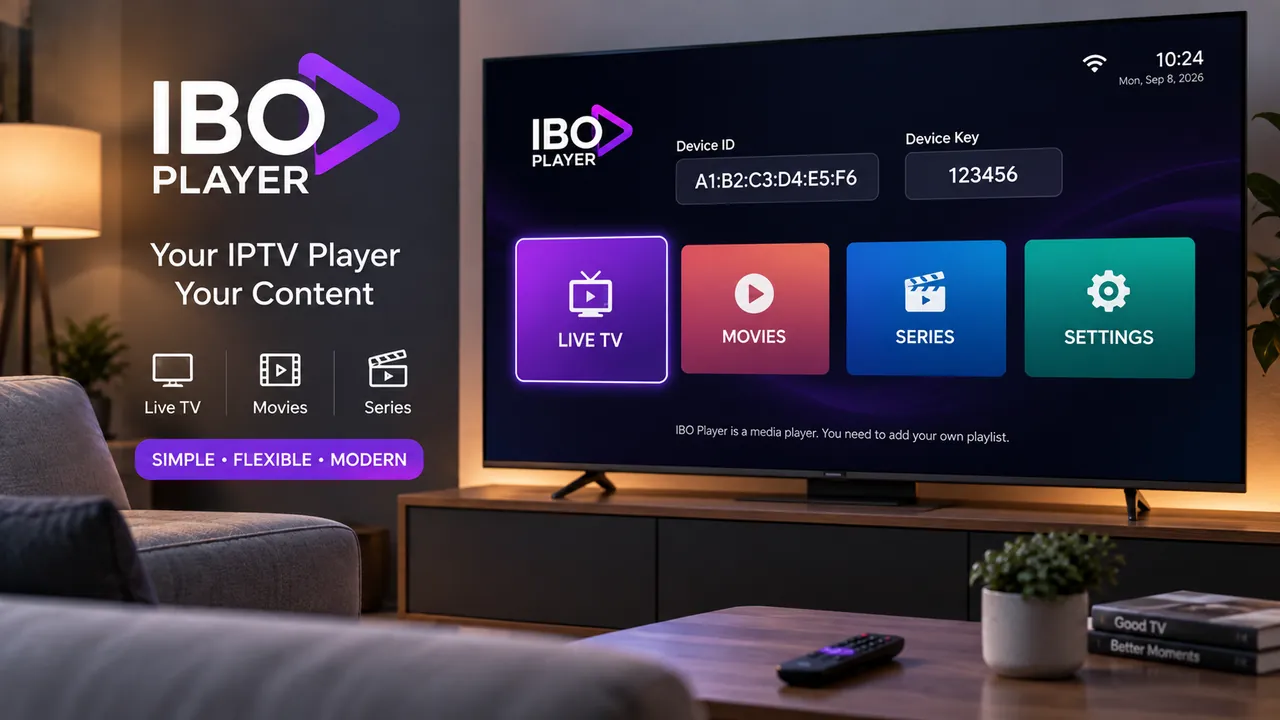
IBO Player device ID and playlist setup on Smart TV
Device identification information connects the television installation with its playlist configuration.

4. Add Your IPTV Playlist

After locating the device information, the next step is connecting a compatible playlist.

Depending on the player version and the source you use, the setup may involve an M3U address or other login information supplied by your provider.

Enter those details carefully. Playlist addresses are often long, and a single incorrect character can stop the list from loading.

Typical Playlist Setup

  • Open the playlist management page used by your installation.
  • Enter the device information shown on the TV.
  • Open the playlist management area.
  • Create or add a new playlist.
  • Give the list a recognizable name.
  • Enter the compatible information supplied by your provider.
  • Check the details before saving.
  • Save the configuration.

An IPTV player and an IPTV subscription are separate parts of the setup. For a broader explanation of that difference, see the FireStickTricks IPTV player guide.

5. Refresh the Application After Saving

Once the playlist has been saved, return to your television and refresh the app.

If the player was already open while you changed the configuration, close it completely and launch it again. This gives the application a chance to request the latest playlist information.

Reinstalling should not be your first move when new content fails to appear. In many cases, the problem is simply an incorrect credential, an unsaved configuration, or an app that has not refreshed yet.

If Your Playlist Still Does Not Appear

  • Confirm the playlist was saved successfully.
  • Check the Device ID again.
  • Check the Device Key carefully.
  • Verify the playlist URL or account information.
  • Confirm that your television still has internet access.
  • Close the app completely and reopen it.

If most channels load but one individual stream fails, the application may not be responsible. Test several different sources before changing your settings.

6. Organize Your Viewing Experience

After everything loads correctly, spend a few minutes learning the interface before deciding whether the player suits your needs.

A useful IPTV setup should make everyday viewing easy. Fast access to the categories you actually watch is often more valuable than dozens of advanced options that never get used.

  • Explore the live television categories.
  • Check movie and series sections when available.
  • Add frequently watched items to favorites if supported.
  • See whether program information appears correctly.
  • Learn the remote buttons you use most often.
  • Keep unnecessary categories out of the way when possible.

A few minutes of organization can make the interface much more comfortable when you are using a standard TV remote from across the room.

7. Improve Streaming Quality

If the application opens normally but playback freezes or buffers, do not immediately assume that the media player is broken.

A streaming setup depends on several components. Internet speed, Wi-Fi coverage, router placement, television hardware, the content source, and network congestion can all influence playback.

Start With the Simple Checks

  • Restart the television or streaming device.
  • Restart your router if the connection feels unstable.
  • Test several channels instead of judging performance from one stream.
  • Pause large downloads on other devices.
  • Move the router closer when Wi-Fi coverage is weak.
  • Use Ethernet when your equipment supports it and Wi-Fi is unreliable.
  • Compare the same source in another compatible player.

If buffering happens across different applications or devices, our IPTV buffering troubleshooting guide explains the most common network and playback causes in more detail.

Why Wi-Fi Quality Matters

A fast internet package does not necessarily mean the television receives a strong connection.

Walls, distance, neighboring wireless networks, furniture, and router placement can all reduce signal quality. Higher-resolution video streams are especially sensitive to an inconsistent connection.

If possible, compare performance near the router or test another device in the same room. That simple check can tell you whether the issue is related to Wi-Fi coverage rather than the streaming application.
IPTV media player streaming smoothly on a living room television
A stable network, capable television, and properly configured playlist all contribute to smoother playback.

8. IBO Player vs Other IPTV Players

There are several popular IPTV players, and the best option depends mainly on your hardware and preferred setup style.

PlayerSetup StyleGood Fit For
IBO PlayerDevice-based playlist configurationSmart TV users who prefer managing playlist information separately
IPTV Smarters ProLogin inside the applicationUsers who prefer entering account information directly on the device
TiviMateTV-focused playlist interfaceAndroid-based television and streaming-device users

If you want to compare another widely used option, see our IPTV Smarters Pro setup guide.

Remember that changing players does not automatically improve the underlying stream. A media player primarily controls how you browse, organize, and play the content supplied to it.

9. Common Problems and Practical Fixes

The App Opens but Shows No Channels

An empty interface usually means the playlist has not been connected successfully or the application has not refreshed the latest configuration.

Check your device information and playlist details before reinstalling anything.

The Playlist Was Added but Nothing Changed

Close the app completely and reopen it. Then confirm that the configuration was saved using the same device details displayed on your television.

The Playlist Does Not Load

Long URLs are easy to mistype. Copy the information directly from your source whenever possible and make sure no unwanted spaces were added.

Only Some Channels Work

If most of the list plays normally but one stream fails, test other channels. A problem affecting one stream does not automatically indicate a player problem.

Playback Keeps Buffering

Check your Wi-Fi and internet connection, then compare the same content on another compatible device. This helps separate network problems from app-specific issues.

The Program Guide Is Empty

Electronic program information depends on data supplied with the playlist. A player cannot create schedule information that is missing from the source.

Do Not Reinstall Too Quickly

Many setup problems come from playlist details, device information, or connectivity. Check those areas first before deleting the application.

10. Protect Your Account and Playlist Details

Streaming players may require device identifiers and playlist credentials, so protecting that information matters.

Do not enter private account details into random websites simply because they use a familiar product name or copy the visual style of a popular application.

  • Use trusted application stores whenever possible.
  • Keep playlist usernames and passwords private.
  • Do not post your Device Key publicly.
  • Avoid unfamiliar pages offering suspicious free activations.
  • Keep your television and streaming hardware updated.
  • Use only content you have permission to access.

Is This IPTV Player Worth Using?

For compatible Smart TVs, this type of player can be convenient if you prefer managing playlist information separately from the television itself.

That workflow means you do not have to type a long playlist address with a remote control every time you configure the app. Once the source is saved correctly, most everyday navigation happens directly from the TV.

It will not be the ideal option for every user. Some people prefer entering all credentials directly inside an app, while others prefer managing the setup from a browser and keeping the television focused mainly on viewing.

The best choice is the one that runs reliably on your hardware and feels easy to use in everyday situations.

Frequently Asked Questions About IBO Player

What is IBO Player?

IBO Player is a media player that can display compatible streaming playlists supplied by the user. The application itself does not include television channels or an IPTV subscription.

Does the player include IPTV channels?

No. The application does not automatically include channels or playlists. You need to add compatible content from a provider or source you are authorized to use.

How do I add a playlist?

Open the application and note the device information shown on the setup screen. Use the appropriate playlist management system, add your compatible playlist, save the configuration, and then restart the player.

Why is my playlist not loading?

Check that the playlist information is correct, the device details match your installation, your internet connection is working, and the content source is currently available.

Is IBO Player an IPTV provider?

No. IBO Player is a playback application. It does not automatically provide television channels, packages, or playlists.

Why does the player keep buffering?

Buffering can be related to your internet connection, Wi-Fi signal, streaming device, network congestion, content source, or playback configuration. Test several streams and another device before changing settings.

Why Viewers Choose SpaceOTT

🇺🇸 Michael R. | USA ★★★★★

A straightforward setup experience makes it easier to move between Smart TVs, streaming players, and other compatible devices at home.

🇨🇦 Daniel M. | Canada ★★★★★

Clear device guidance makes the relationship between the player, playlist, and television much easier to understand.

🇫🇷 Lucas M. | France ★★★★★

Flexible device options are useful for households that watch across Smart TVs, phones, tablets, and streaming hardware.

🇮🇹 Matteo B. | Italy ★★★★★

A simple setup process makes everyday viewing easier once the right application and device are configured correctly.

🇮🇪 Jack O. | Ireland ★★★★★

Helpful setup information makes it easier to choose a player and troubleshoot common device or connection problems.

Final Verdict: IBO Player

A Simple Player Once the Setup Makes Sense

IBO Player becomes much easier to understand once you separate the playback application from the IPTV service.

The app provides the interface, while your compatible playlist supplies the content. Once the device and source details are configured correctly, the television becomes the main place for browsing and playback.

If something goes wrong, check the playlist information, device credentials, network connection, and source availability before reinstalling the software.

For compatible Smart TVs, the player can be a practical option when its playlist-management workflow matches the way you prefer to configure and watch IPTV.
IPTV on Roku: 7 Powerful Steps for Easy Streaming

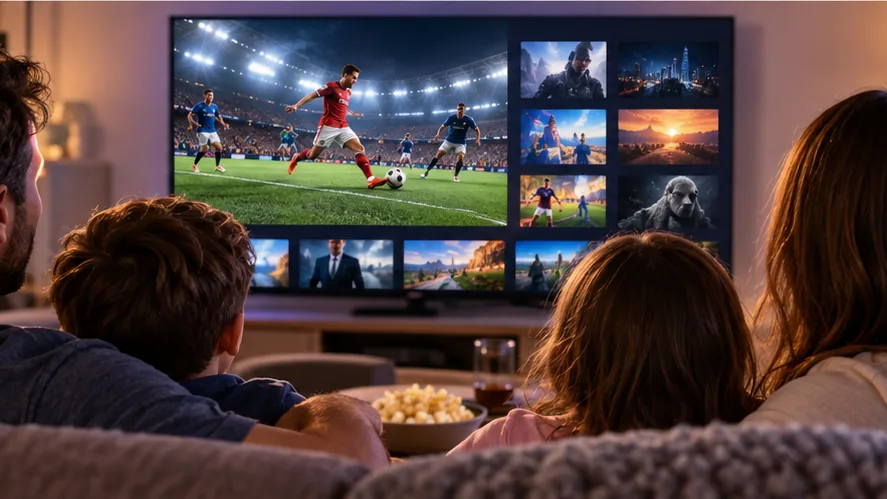
Family watching IPTV on Roku in a modern living room

IPTV on Roku works differently from IPTV on Fire TV or Android TV. Roku uses its own app ecosystem, so you cannot simply install any Android IPTV application directly on the device and expect it to work.

That difference can confuse people who already use IPTV on another streaming platform. The good news is that Roku users still have several practical options. Depending on your Roku model and the other devices in your home, you can use AirPlay, screen mirroring, casting, or a compatible Roku application to bring IPTV content to the television.

The easiest approach is not to search for complicated tricks. Start with the hardware you already own, choose the simplest supported connection method, and make sure your home network is stable enough for streaming.

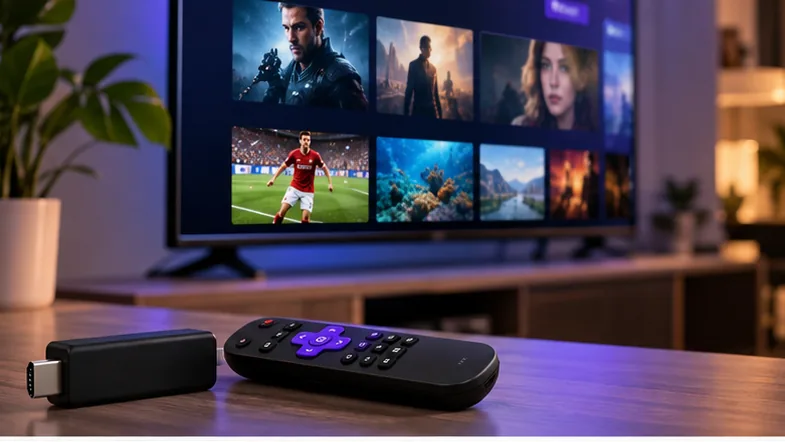
IPTV on Roku streaming setup with Roku TV and smartphone
A Roku TV can become part of an IPTV setup using compatible apps, AirPlay, casting, or screen mirroring.

1. Understand How IPTV on Roku Works

Roku is not based on Android. Standard Android APK files are therefore not designed to install directly on Roku devices.

This matters because many IPTV tutorials online are written for Fire TV or Android TV. Following the same instructions on Roku can lead to unnecessary confusion because the operating systems use different application environments.

A Roku IPTV setup often works by letting another device handle playback while Roku acts as the display. Your iPhone, iPad, Android phone, Mac, or Windows computer can run the IPTV player and send the picture to the television using a supported wireless method.

The Simple Version

You do not always need an IPTV player installed directly on Roku. Another device can run the player while Roku displays the video on your television.

If you use IPTV across several devices, the SpaceOTT setup guides cover additional platforms and installation options.

2. What You Need Before Setting Up IPTV on Roku

A few basic checks can make the setup much easier.

  • A Roku TV or Roku streaming player connected to your television.
  • A stable home internet connection.
  • A phone, tablet, Mac, or Windows computer when using AirPlay or screen mirroring.
  • A compatible IPTV player on the source device.
  • Your Roku and source device connected to the same local network.
  • Updated software on both Roku and the device sending the stream.

Do not skip the same-network requirement. If your phone is using mobile data while Roku is connected to home Wi-Fi, local casting and mirroring features may not find the television.

3. Check Your Roku Device First

Before changing settings, identify the exact Roku model and software version you are using.

  • Open the Roku home screen.
  • Go to Settings.
  • Select System.
  • Open About.
  • Check your model and software information.
  • Run a system update if one is available.

This takes less than a minute and can prevent a lot of wasted troubleshooting. Older Roku hardware may not support every feature in exactly the same way as newer models.

4. Stream IPTV on Roku With AirPlay

For iPhone, iPad, and Mac users, AirPlay is often the most convenient Roku IPTV option.

Compatible Roku devices can receive AirPlay content from supported Apple hardware when both devices are connected to the same network.

For current compatibility information and official setup instructions, check the Roku AirPlay guide.

Basic AirPlay Setup

  • Connect your Roku and Apple device to the same Wi-Fi network.
  • Open Settings on Roku.
  • Select Apple AirPlay and HomeKit.
  • Make sure AirPlay is enabled.
  • Open your compatible IPTV player or video source.
  • Select the AirPlay option.
  • Choose your Roku device.

Your Roku may display a code the first time you connect an Apple device. Enter that code on your iPhone, iPad, or Mac to complete the connection.

iPhone using AirPlay to stream IPTV on Roku TV
AirPlay is a convenient IPTV on Roku option for households already using Apple devices.

5. Use Screen Mirroring for IPTV on Roku

Screen mirroring is useful when the IPTV player works on your phone or computer but does not have a direct Roku version.

Instead of installing the player on Roku, your television shows what is happening on the source device.

Typical Mirroring Setup

  • Connect Roku and the source device to the same network.
  • Open the screen mirroring settings on Roku.
  • Enable the required permission or prompt option.
  • Start screen mirroring from the compatible phone or computer.
  • Select your Roku device.
  • Accept the connection on the TV if Roku asks for confirmation.
  • Open the IPTV player and start playback.

The source device remains important during the session. If you close the player, disconnect Wi-Fi, or stop screen sharing, playback on the television will normally stop as well.

6. Casting Is Different From Screen Mirroring

Casting and mirroring sound similar, but they work differently.

Mirroring shows the source device’s screen on the television. Casting allows a compatible application to send supported content to another device while your phone acts more like a controller.

Casting can feel cleaner because your television does not need to show every menu or notification that appears on the phone. However, both the application and Roku environment need to support the required casting method.

Check the Player Before Troubleshooting Roku

If your IPTV player has no supported cast option, changing Roku settings will not magically add one. In that situation, AirPlay or screen mirroring may be the easier solution.

7. Check for Roku-Compatible IPTV Apps

Application availability changes over time, so always check Roku’s current app ecosystem instead of relying entirely on old videos or forum posts.

  • Open Roku Home.
  • Go to the Roku Store or Apps section.
  • Search for the player or streaming application you want.
  • Read the app description carefully.
  • Confirm that it supports the type of playback you need.
  • Add the application if it is suitable.

One important rule is worth repeating: a normal Android APK is not automatically compatible with Roku. The platforms use different application systems.

8. Improve Your Network for Smoother Roku IPTV Streaming

Your network becomes especially important when IPTV is playing on one device and being sent wirelessly to Roku at the same time.

A fast internet package alone does not guarantee a perfect experience. Wi-Fi signal quality, router placement, local congestion, and the source device can all affect playback.

  • Keep Roku within a reasonable distance of your router.
  • Avoid placing the router inside a closed cabinet.
  • Reduce large downloads while watching live television.
  • Keep Roku and your source device updated.
  • Restart networking equipment if the connection becomes unstable.
  • Test the same IPTV stream directly on the source device first.
  • Check whether other devices in the house are using large amounts of bandwidth.

If channels continue to pause or freeze, our IPTV buffering guide walks through common network and playback problems.

Test One Variable at a Time

If playback is bad, do not change five settings at once. First test the stream directly on your phone or computer. Then test the Roku connection. This makes it much easier to identify whether the issue is the IPTV stream, your internet connection, the source device, or wireless mirroring.

9. Which IPTV on Roku Method Is Best?

The simplest method is usually the best one. Choose based on the devices you already use every day.

DeviceMethod to TryBest Use
iPhoneAirPlaySimple wireless streaming
iPadAirPlayStreaming and screen sharing
MacAirPlayDesktop IPTV playback
Compatible Android DeviceScreen MirroringDisplay your IPTV player on the TV
Windows PCScreen MirroringUseful when IPTV runs on the computer
Supported Roku AppDirect AppKeeps playback centered on Roku
Family watching IPTV on Roku in a modern living room
The best Roku IPTV setup depends on the devices already available in your home.

10. Common Mistakes to Avoid With IPTV on Roku

Trying to Install Android APK Files

Roku is not an Android device. Tutorials that tell you to install a standard Android APK directly onto Roku can create more confusion than they solve.

Using Different Wi-Fi Networks

Your source device and Roku normally need to be on the same local network for features such as AirPlay and mirroring to discover each other.

Ignoring the Source Device

If IPTV works badly on your phone before you even connect to Roku, Roku is unlikely to fix the stream. Test the source first.

Following Outdated App Recommendations

Roku app availability changes. Search the current Roku Store rather than assuming an application mentioned in an old tutorial is still available.

Assuming Every Connection Problem Is the IPTV Provider

Home Wi-Fi can be responsible for delayed loading, disconnects, or poor mirroring performance. Check the full setup before changing subscriptions.

11. Roku vs Firestick for IPTV

Roku and Fire TV can both be part of a modern streaming setup, but they approach applications differently.

Roku can be convenient for households already invested in Roku TVs and users who are comfortable with AirPlay, supported apps, or screen mirroring.

Fire TV generally offers more flexibility for users who specifically want dedicated IPTV player applications installed directly on the streaming device.

Neither option is automatically right for everyone. Roku may make more sense if you already own the hardware and only need a simple wireless connection from another device. Fire TV may appeal more to users who want the streaming player itself to handle most of the IPTV experience.

For a closer look at that alternative, see our IPTV for Firestick guide.

Choosing the Right SpaceOTT Setup

Think about the television, phones, streaming devices, and network you already use before choosing a plan. Our IPTV subscription guide explains the main factors worth checking before committing.

Is Roku Good for IPTV?

Roku can be a good IPTV option when it already fits naturally into your home entertainment setup.

If you own a compatible Roku TV and an iPhone, for example, AirPlay can provide a straightforward path without buying another streaming box. Android and Windows users may prefer screen mirroring when their devices support it.

The main limitation is application flexibility. Users expecting Roku to behave exactly like Android TV or Fire TV may find the platform restrictive. Once you work with Roku’s supported features instead of against them, however, the setup becomes much easier to understand.

Frequently Asked Questions About IPTV on Roku

Can I watch IPTV on Roku?

Yes. Depending on your Roku model and devices, IPTV can be streamed using AirPlay, screen mirroring, casting, or a compatible Roku application.

Can I install an IPTV APK on Roku?

No. Roku does not use standard Android APK applications. Use a Roku-compatible app or stream from another supported device.

Can I use IPTV on Roku from an iPhone?

Yes, if your Roku supports AirPlay. Connect both devices to the same network, enable AirPlay on Roku, and select Roku from your Apple device.

Can Android mirror IPTV to Roku?

Compatible Android devices can use screen mirroring with supported Roku hardware. Compatibility varies by phone and Roku model.

Why does IPTV buffer on Roku?

Buffering can come from the IPTV stream, internet connection, Wi-Fi quality, source device, network congestion, or the additional wireless connection used for mirroring.

Is Roku better than Firestick for IPTV?

Roku works well with AirPlay, mirroring, and supported apps, while Fire TV generally offers more flexibility for dedicated IPTV player applications.

Why Viewers Choose SpaceOTT

🇺🇸 Michael R. | USA ★★★★★

SpaceOTT keeps the setup straightforward and fits naturally with the streaming devices already used around the home.

🇨🇦 Daniel M. | Canada ★★★★★

The flexible setup makes SpaceOTT a practical choice for households using Smart TVs, phones, tablets, and streaming players.

🇬🇧 Oliver T. | United Kingdom ★★★★★

SpaceOTT fits well into a modern home streaming setup and gives viewers an easier way to move beyond traditional television hardware.

🇦🇺 Liam S. | Australia ★★★★★

The service works well for viewers who want a straightforward internet-based television experience across compatible devices.

🇳🇱 Noah V. | Netherlands ★★★★★

SpaceOTT provides helpful setup guidance that makes it easier to choose the right player and connection method for each device.

Final Verdict: IPTV on Roku

Use Roku the Way It Was Designed

IPTV on Roku is possible without turning your television setup into a complicated project.

Apple users can begin with AirPlay. Compatible Android and Windows devices can explore screen mirroring, while Roku-supported applications may provide a more direct experience when the right app is available.

The biggest mistake is treating Roku like an Android box. Choose a method that matches Roku’s actual features, keep your network stable, and test playback on the source device before troubleshooting the television.

Once the right connection method is in place, Roku can be a practical part of a flexible SpaceOTT streaming setup.

error: Content is protected !!